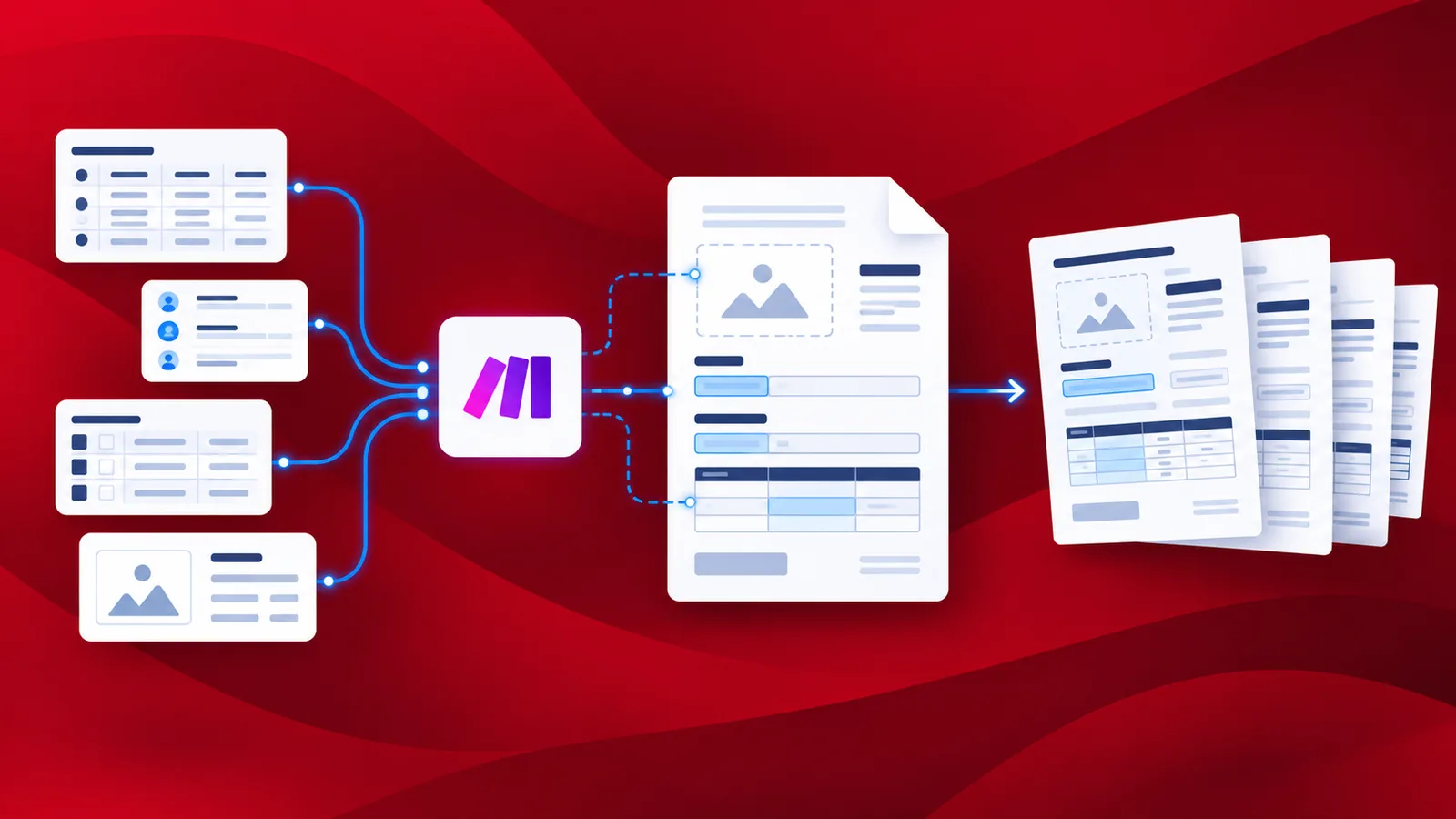
Dynamic document generation is the process of creating a batch of documents that are personalized with dynamic data from a source on a predefined template. For example, an Invoice might be personalized to address each recipient by name. Creating documents with dynamic data would require a data source, like a list, spreadsheet, database, JSON, or arrays. Merge fields are placeholders in predefined templates that are later replaced using data from one of the above-mentioned or any other supported data sources.
Generating a document with dynamic data requires the application of techniques like mail merge or using merge fields. One of the most popular methods of dynamic document generation involves the use of mustache rendering, which is far easier in designing templates. Custom invoices are based on document templates created using Word or other form creators that have to merge field capabilities. Here we discuss the use of templates created using the mustache syntax - {{placeholder field}} - which is later replaced with the dynamic data.
PDF4me Generate Document action in Make lets you create scenarios to generate dynamic documents and automate them. The generation process can be automated with simple configurations if you have the template and the dynamic data ready. The template can be a Word file or HTML, or any other supported format. The data can be a Spreadsheet, CSV, JSON, XML, or data list.
How to Generate Documents automatically?
The generation of dynamic documents requires the template and data to be stored in cloud storage. At least, the template should be in cloud storage like Dropbox, but the data can be passed to an input data field directly.
Let us look at a scenario where the template and data are stored in 2 different folders in Dropbox.
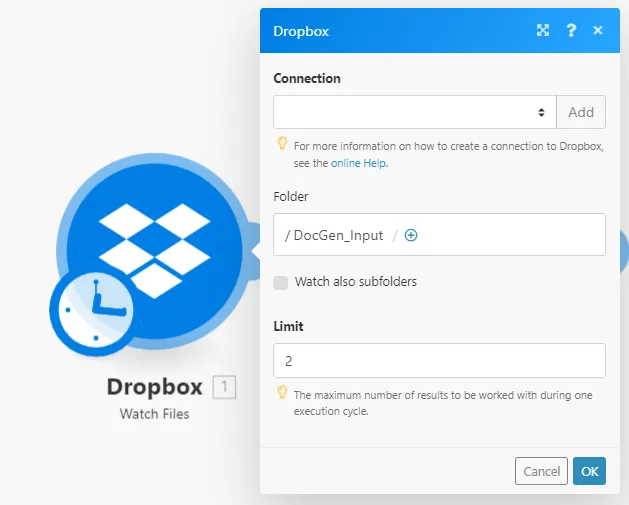
Add a Watch for Files Dropbox trigger
To begin the automation, create a Dropbox module to watch for the templates arriving. As soon as the new template file arrives in the folder, the scenario is triggered.
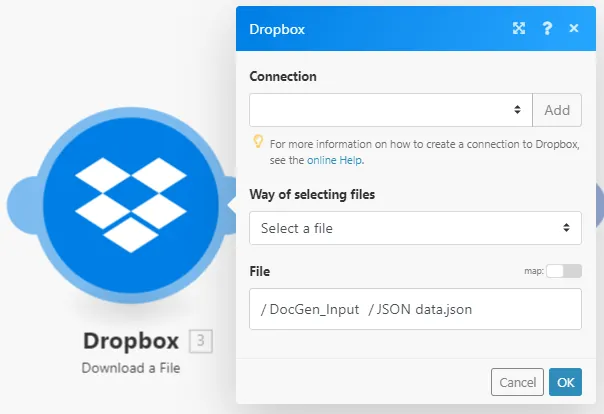
Add a Download file Dropbox action
Once the template file is detected in the source folder, the Dropbox module with the Download file action will pass the file from the storage to the PDF4me action. We need to add 2 Download files actions.
One for downloading the Template.
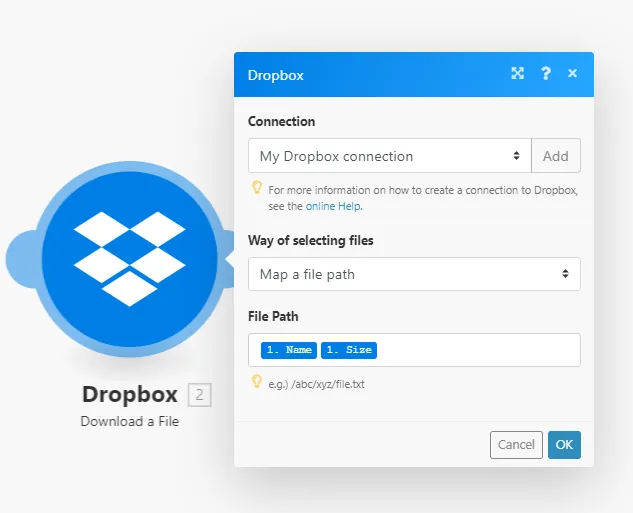
Another for Downloading the data file.
Add the PDF4me Generate Document module
Next in the scenario, we have to add the PDF4me module with the Generate Document Action.
Here, you need to configure the Template type, the Output type, and the Input data. The input data can either be directly entered into the field or in our case, configure to get the data from the JSON file.
Add an Iterator to handle the multiple output files
It is obvious, that the PDF4me action will generate multiple files based on the data. To handle this we need an Make Iterator module to handle each file for the next action.

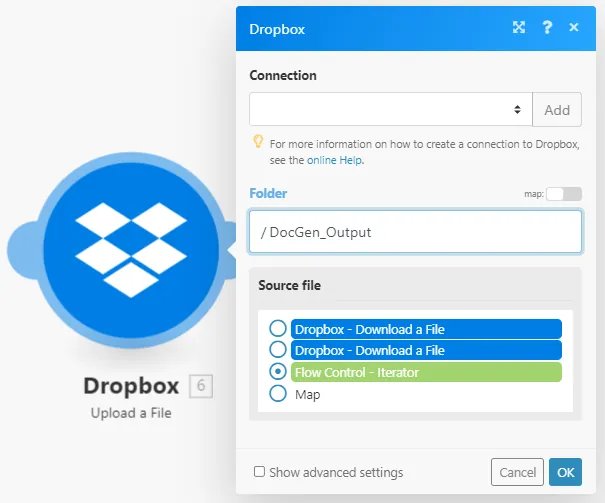
Add Dropbox Upload module to save the output files
Create a Dropbox module with the Upload files action to save all the files to the desired folder.