
 Microsoft-certified connector
One connector, every action
Add PDF4me once and reach all 128 actions: convert, merge, OCR, e-sign, barcode and AI parsing. One certified connector, one API key, no custom code.

Convert, merge, OCR, generate, e-sign, barcode and AI-parse documents in any flow. One certified connector, one API key, no code.
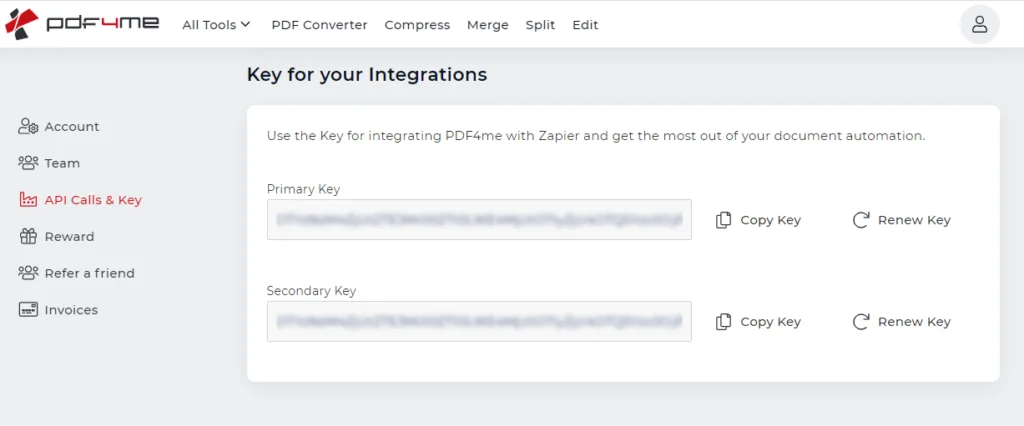
Every PDF4me connection in Power Automate authenticates with your API key, so set this up first. Create a free PDF4me account, open the dashboard and copy the full key from API Calls & Key. Keep it somewhere safe, with no extra spaces.
Get your free API key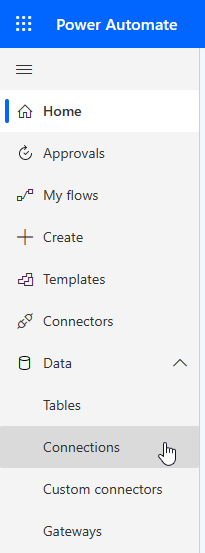
Sign in to Power Automate with your API key ready. Open the Data menu and choose Connections, where all of your connectors are managed. This is where you add PDF4me so your flows can call it.
Open Power Automate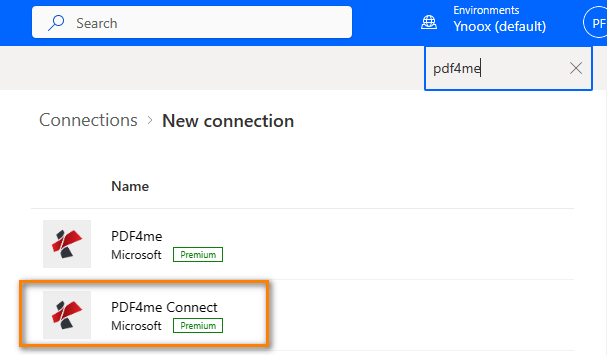
Click New connection, search for PDF4me, and choose PDF4me Connect. It uses API-key authentication, the simplest option for automated flows. A separate PDF4me connector is also available if you prefer signing in with OAuth.
See PDF4me on Power Automate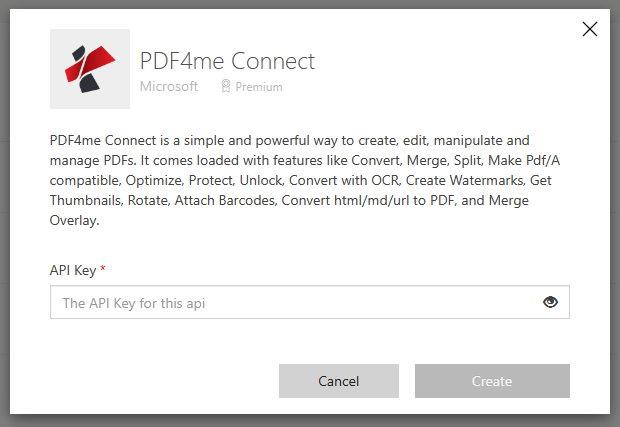
In the pop-up, paste the PDF4me API key you copied and confirm. Once the connection is created, every PDF4me action is available in your flows, from convert and merge to barcodes, stamps and data extraction.
Browse all 128 actionsWith the connection in place, build your first flow. A common start triggers on a new file in OneDrive, runs a PDF4me action such as Convert to PDF, saves the result back, and sends a notification through Outlook.
Read the full walkthroughThe full catalogue, grouped by domain. Every action opens its documentation, and each domain links to its own PDF4me connector.
Add PDF4me once and reach all 128 actions: convert, merge, OCR, e-sign, barcode and AI parsing. One certified connector, one API key, no custom code.
Start flows from SharePoint, Outlook, Forms, Teams or a schedule. PDF4me runs as an action, so it drops straight into the triggers and apps your team already uses.
Twelve AI parsers turn invoices, receipts, contracts and bank statements into structured fields in the same flow, with no separate OCR or data-entry step.
Create an API key with no credit card and run real flows on the free tier. Billing is by API usage, separate from your Microsoft licence.
Clone a template and swap in your files, no build from scratch.
Convert any office documents, images to PDF using PDF4me Convert To PDF action and save it to DropBox folder location.
Add Text Watermark or Stamp on PDF documents using this template and save to the output file back to SharePoint.
Split PDF documents by page number using this predefined template and save the output files back to OneDrive.
Convert HTML file to PDF using this template and save to SharePoint. Supports a Zip file input containing web artifacts like CSS, images, scripts, etc.
Build it into your product with the API, automate it with no code, or use the free tools in your browser. No credit card to begin.
curl -X POST https://api.pdf4me.com/v2/ConvertToPdfFree tier · No credit card required