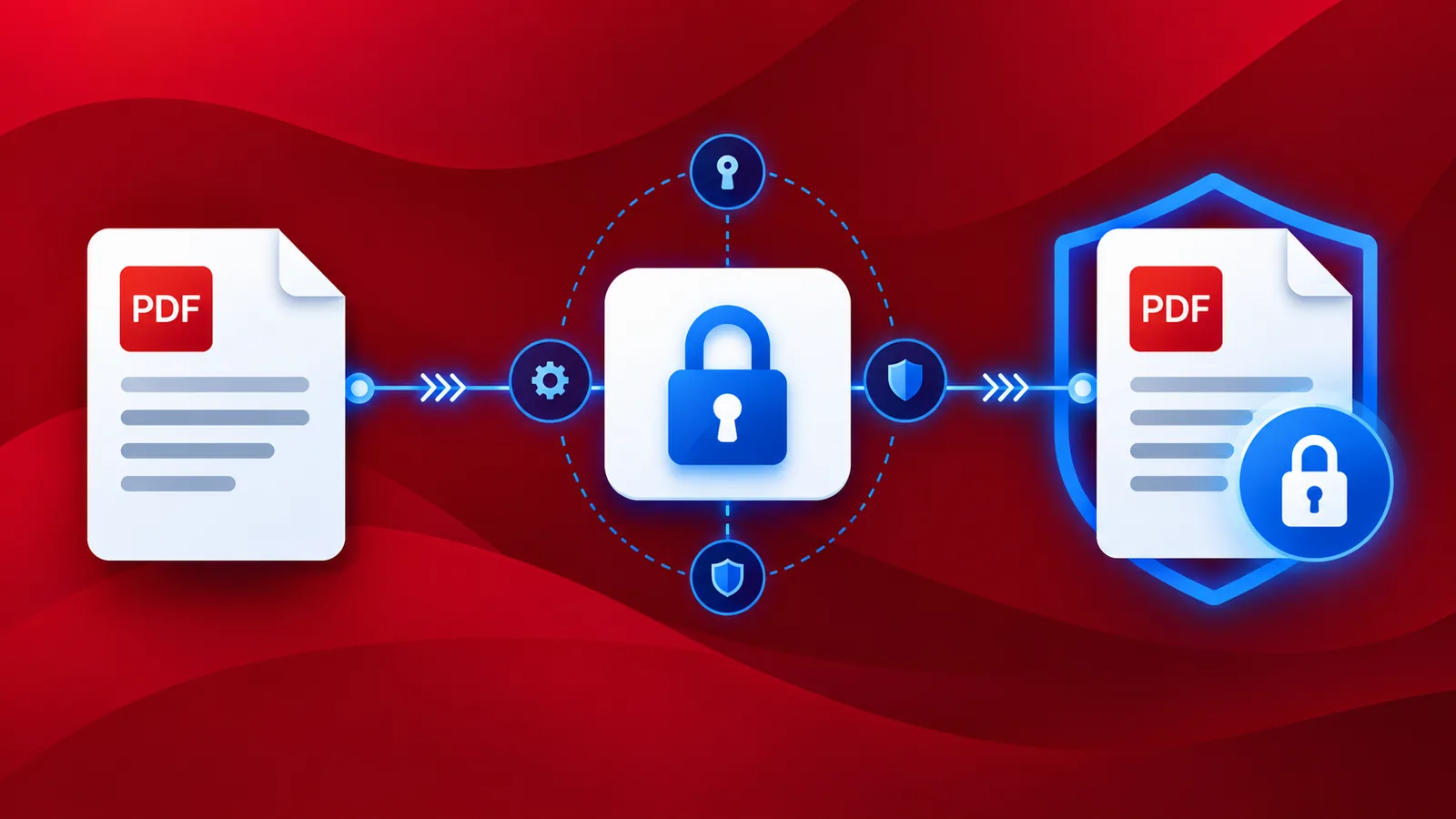
Data security is always been a concern since the day communication has been happening. How much ever we securely store the data, it’s always a good idea to add an additional security to it. When it comes to business documents, confidential documents in particular, it’s always a good idea to protect them with a password. This can be automated with PDF4me's automation Platform, Workflows.
Protect your important PDF files with a password and save them to cloud storage. Protection of the PDF file and privacy is needed in every possible instance of data transfer. Adding a Password to PDf is a reliable way to ensure the files are tamper-proof. PDF4me Protect PDF action in Workflows helps you to set a password to a PDF file on the go.
How to automate add Password to PDF?
To automate this workflow, let us begin by creating a new workflow from the PDF4me Dashboard.

Add a trigger to start your Workflow
Add a trigger to kick-start your automation. Currently, Workflows provide 2 triggers.
Dropbox and Google Drive. For e.g. let us create a Google Drive trigger. Configure the connection and choose the folder where the input files are expected.

Add the Protect PDF action
Add the Protect PDF action to add the desired password to all your PDF files. Configure the password in the action.

Add a Save to action
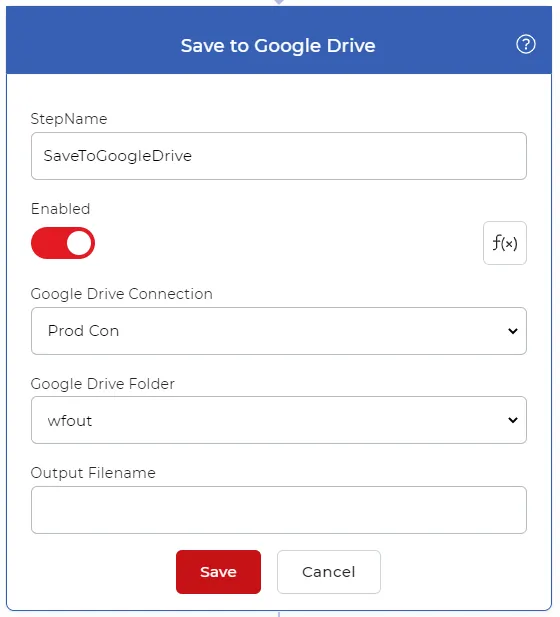
The output files need to be saved back to cloud storage. In our use case let us configure a Save to Google Drive action.