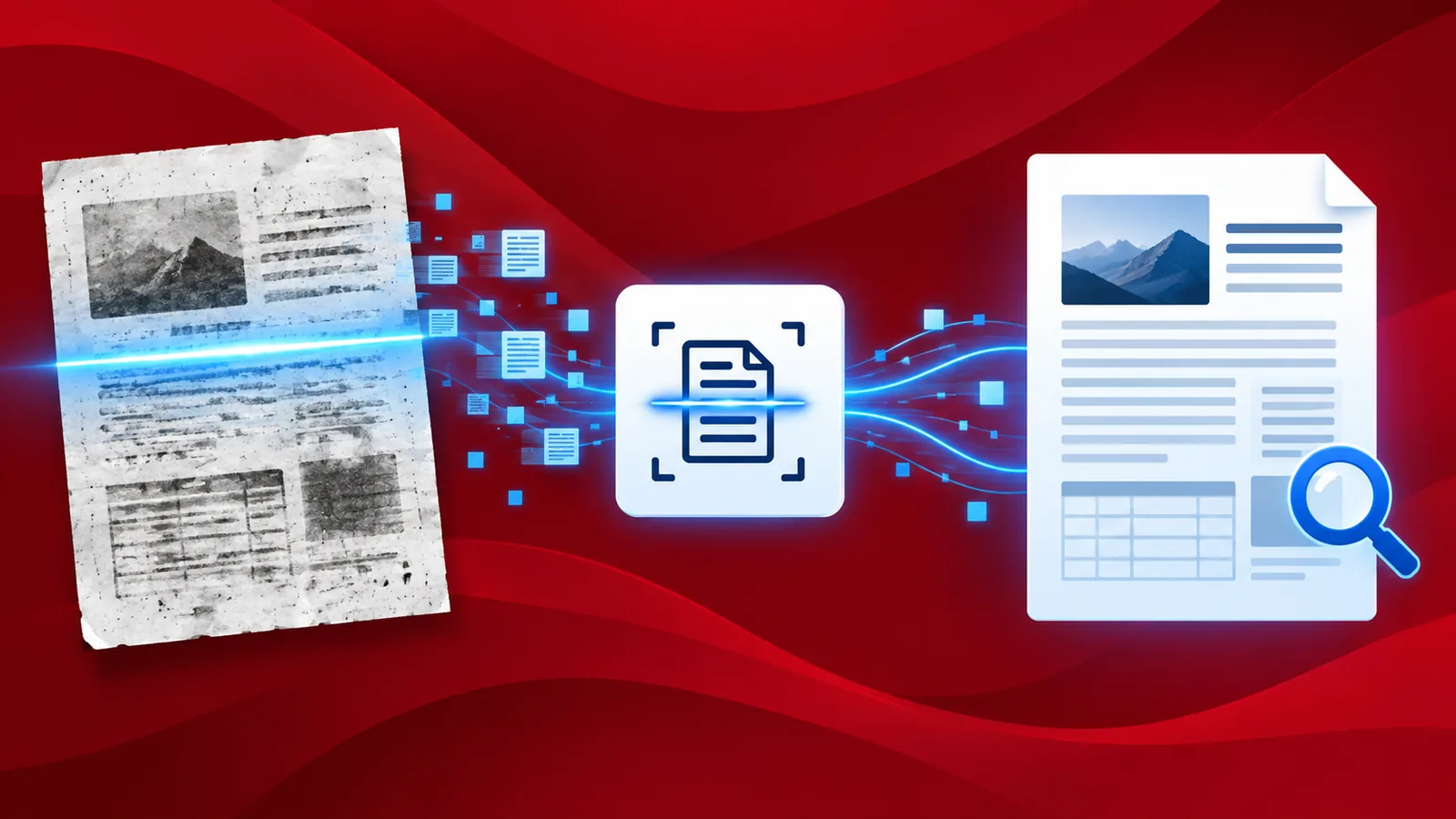
We capture a lot of images of documents or surfaces with text for extracting the data or for later reference. This may be using a simple camera on your phone or using a document scanner. Converting scanned documents or images as text-searchable PDF files is important for their further processing. To make PDFs searchable, the most used technology is optical character recognition - OCR.
PDF4me provides PDF OCR that produces one of the most accurate text recognition. But when you have hundreds of scanned documents that need to be recognized the only solution would be automation. PDF4me Workflows has the right action to execute this automation - the PDF OCR.
Let us look at an example workflow to recognize text using the PDF OCR action.
Automate PDF OCR with Workflows
Generate PDF documents with searchable text content from scanned documents or document images. Convert scanned document files into PDF documents with copiable text using PDF4me OCR. Automate the process using Workflows automation platform from PDF4me.
We can begin by creating a sample workflow to automate the PDF OCR process.
Add a trigger for the Workflow
Create and configure a trigger to initiate the Workflow automation. As soon as a new file arrives in the configured folder of the trigger, the automation is initialized.
Workflows provide 2 triggers at the moment - Google Drive and Dropbox.
We use the Dropbox trigger in the example.

Add the PDF OCR action
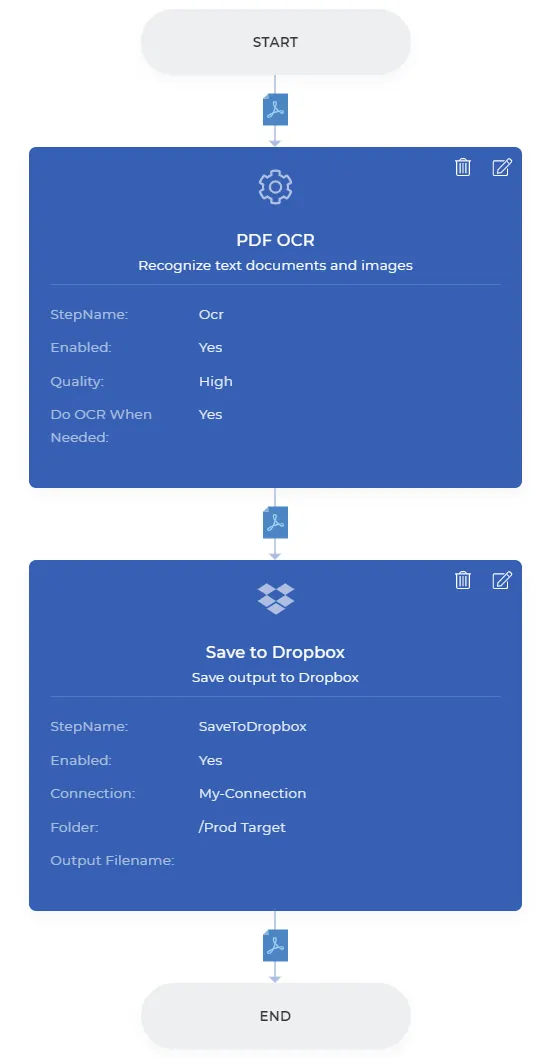
Add the PDF OCR action and configure it according to your requirement. There are 2 quality profiles for the recognition.
- Draft - Suited for good-resolution document scans and images.
- High - Works well for low-resolution document scans. Also recognizes a wide range of languages.

Set the 'Do OCR When Needed' to 'true' for running OCR only on pages that require character recognition and ignore already recognized content. Thereby saving processing time and automation call credits.

Add Save to Storage action
Add the action for saving the output PDF files. We will choose the Save to Dropbox for the example. Configure the folder where you want your processed files to be saved. Once the configurations are complete, you can Save to Publish the Workflow. A sample Workflow will look like below.
