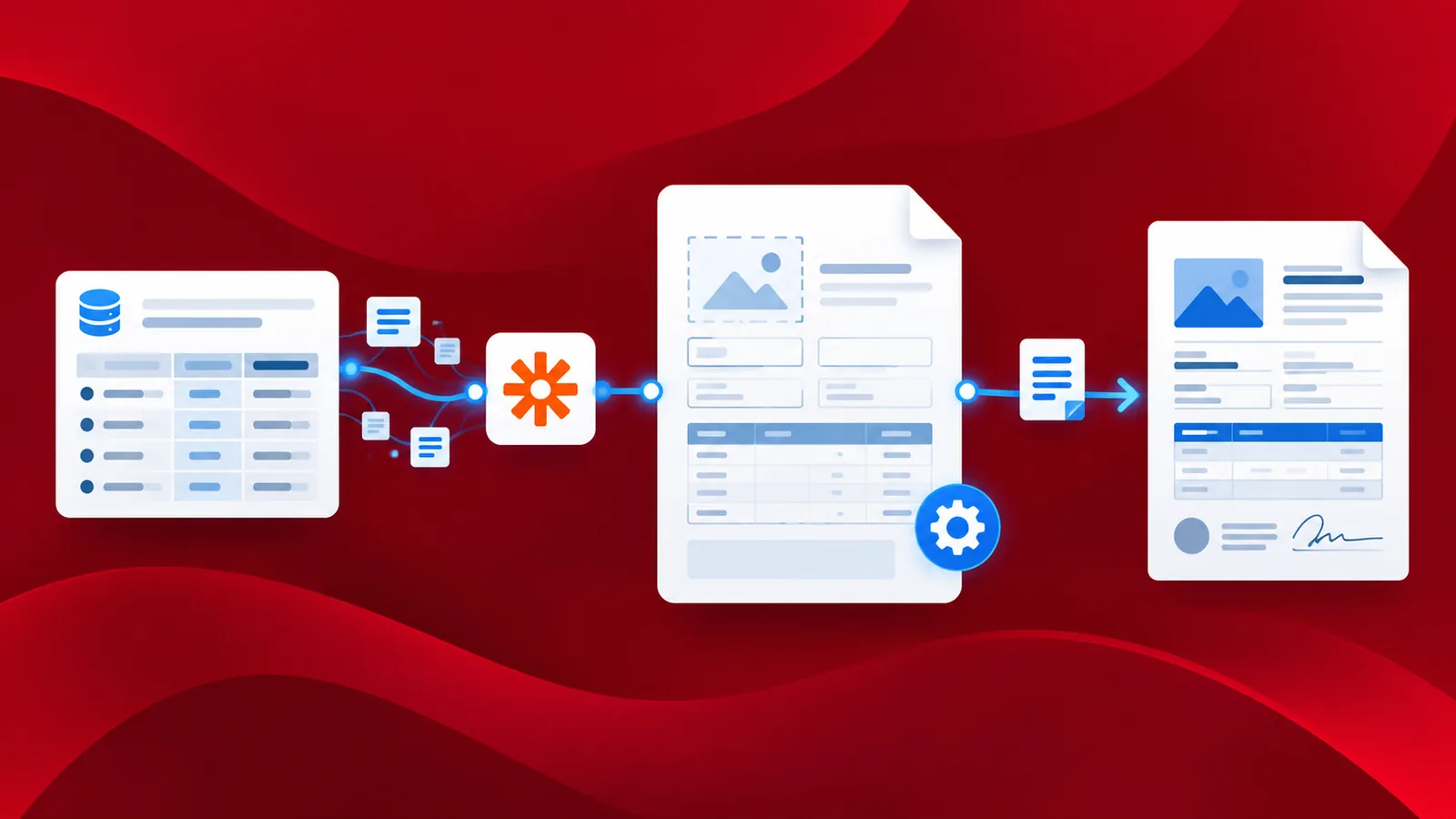
Generate Document is a PDF4me action for Zapier that performs a mail merge: it takes a Word, HTML or PDF template plus a JSON or XML data file and returns the filled document. A Zap can watch a folder, merge each record, and save every result without anyone opening Word.
Every mail merge tutorial you will find assumes a person is sitting in Word, clicking through a wizard. That works once. It does not work when a hundred invoices need generating on a schedule, or when the data arrives from a system rather than a spreadsheet on someone's desktop. This post covers the template syntax and the Zap that runs the merge unattended.
Write merge fields into a Word document using the double angle bracket syntax. Keep that template in one Dropbox folder and let data land in another. A Zap picks up the data, hands both files to PDF4me's Generate Document action, and saves the merged result. Choose the Single action for one document per run, or the Multiple action when one data array should produce many.
Why-Based Q&A
Why use a Word template rather than build the document in code? Because the people who own the wording are rarely the people who own the code. A Word template can be edited by whoever writes the invoice copy, and the next run picks it up with no deployment and no developer in the loop.
Why JSON or XML instead of a spreadsheet? Those are the shapes a system emits. Mail merge in Word reads a sheet because a human exported one. When the trigger is an order being placed or a form being submitted, the data is already structured, and the merge should accept it in that form.
Why are there two Generate Document actions? Generate Document Single merges one record and returns one file. Generate Documents Multiple takes an array and returns one file per element. Picking the wrong one is the usual reason a Zap produces a single document when a batch was expected.
Why keep the template in its own folder? The trigger watches the data folder. If the template sat alongside the data, uploading a revised template would fire the Zap and attempt a merge against a template as though it were a record.
What You'll Get
Input: a Word template holding merge fields, plus a JSON or XML record. Output: the merged document, saved back to cloud storage, ready to send or archive.
What You Need
- Zapier. Open the PDF4me Zapier app. A multi step Zap needs a paid Zapier plan.
- PDF4me API key. Get your API key. Connect it the first time you add a PDF4me action.
- Cloud storage with one folder for templates and a separate folder for incoming data.
- A Word template with merge fields written in the PDF4me syntax below.
What is a mail merge, in one paragraph?
A mail merge reads values from a data source and drops each one into the matching placeholder in a template. You keep two things: a template holding the merge fields, and a data source supplying the values. The merge engine combines them and returns a finished document, once per record.
PDF4me accepts Word, HTML and PDF templates. Word is the richest of the three, because the syntax supports conditions, tables, repeating sections, images and inline HTML rather than simple find and replace.
How do you design a Word template?
Merge fields use double angle brackets around the field name:
<<[FieldName]>>
Drop that into a Word document wherever the value belongs. The name inside the brackets matches a key in your JSON or XML record.
Word template syntax reference
| You want | Documentation |
|---|---|
| The full syntax, start to finish | Overview |
| Conditional statements | Text controls |
| Tables that grow with the data | Tables |
| Repeating paragraphs and sections | Repeat paragraphs |
| Inserting images | Insert images |
| Inserting raw HTML | Insert HTML |
| Number and date formatting | Formatting |
| Variables and lists | Variables |
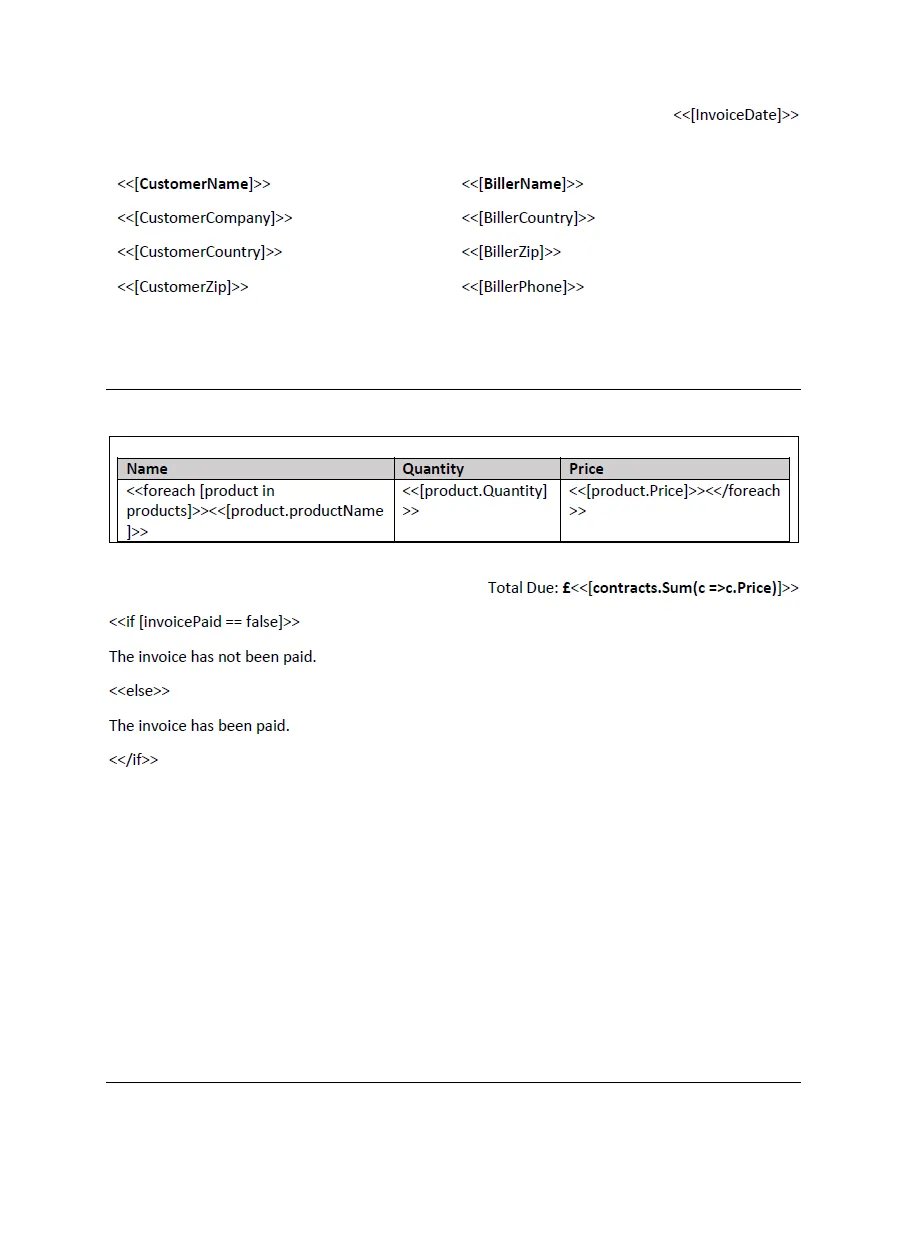
A sample invoice template using a table and conditions. The table row repeats once per line item in the data.
How do you build the Generate Document Zap?
The Zap has four moving parts: something to start it, the template, the merge, and somewhere to put the result.
- Trigger. Pick the trigger matching where your data arrives. With Dropbox, that is New File in Folder pointed at your data folder.
- Fetch the template. The trigger only carries the file that just arrived, so read the template separately. With Dropbox that is Find File, pointed at the template folder with the template's exact file name.
- Merge. Add the PDF4me Generate Document action and map both files into it.
- Save. Add Upload File to write the result back. If the merge returned several documents, put this inside a Create Loop From Line Items step from Looping by Zapier so it runs once per document.
Generate Document parameters
| Parameter | Required | What it does |
|---|---|---|
| Template File | Required | The template itself, mapped from the step that fetched it. |
| Template File Type | Required | Which kind of template you supplied: Word, HTML or PDF. |
| Input Data Format Type | Required | Whether the data arrives as Text or as a File. |
| Data Text or Data File | Required | The record. Which one you fill depends on the line above. |
| Input Data Type | Required | The data's own format: JSON or XML. |
| Template File Name | Optional | Names the template for the action, extension included. |
| Output Document Type | Optional | The format of the generated document. |
| Keep Pdf Editable | Optional | Leaves form fields editable in the output. |
| Meta Data | Optional | Extra values passed through to the merge. |
Tip. Template File Type and Input Data Type are the pair people most often mismatch. If the output comes back with the placeholders still visible, check those two before anything else: the merge ran, it just had nothing it recognised to merge.
Single vs Multiple, and when the loop is needed
| Single vs Multiple | Generate Document Single | Generate Documents Multiple |
|---|---|---|
| Data shape | One record | An array, one object per document |
| Returns | One document | One document per array element |
| Needs a loop after it | No | Yes, to save each result |
| Typical use | One invoice for one order | A batch of statements from one export |
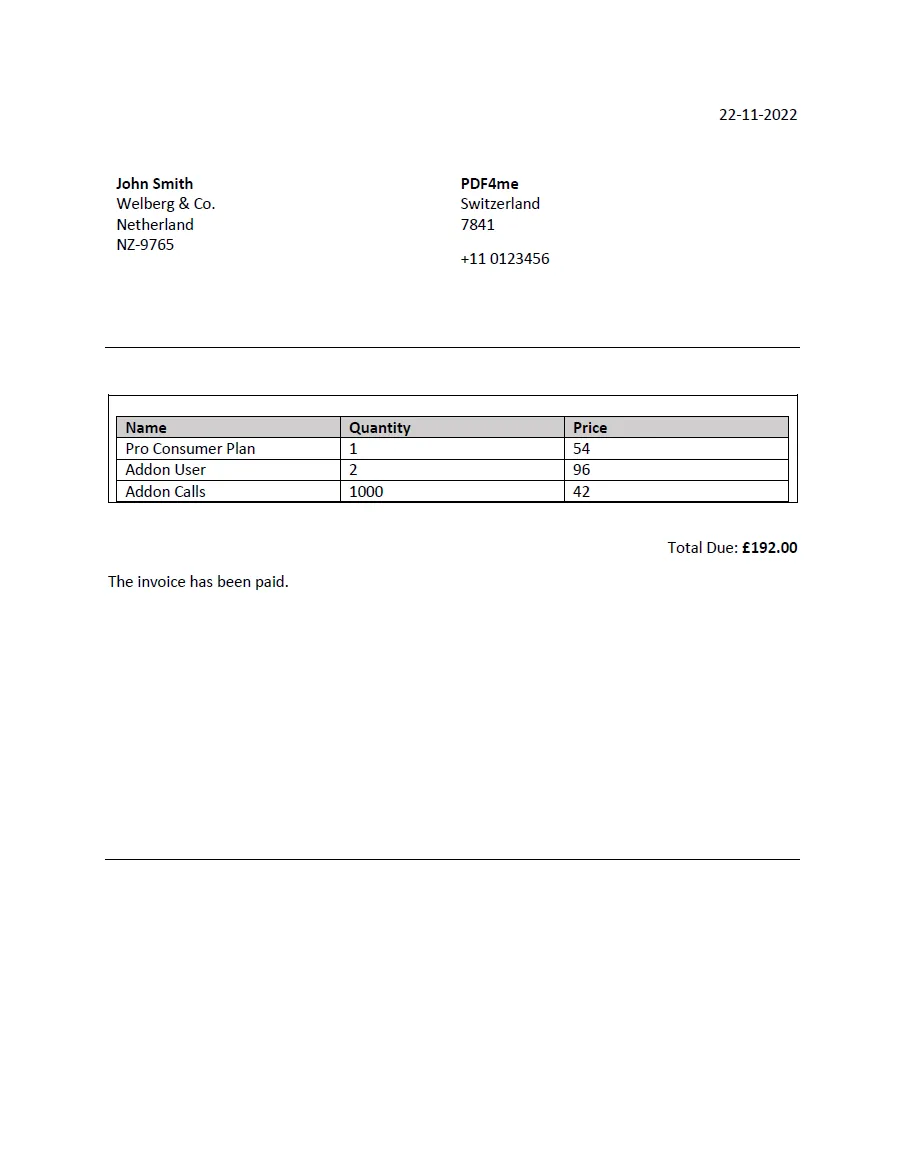
The merged output. Every placeholder from the template has been replaced, and the table has expanded to one row per line item.
Run the Zap and verify
- Publish the Zap.
- Drop a sample record into the data folder and wait for the trigger to poll.
- Open Zap runs and confirm the Generate Document step returned a file rather than an error.
- Open the output and check two things: no placeholders left visible, and the repeating table has the right number of rows.
What did you actually build? A document factory whose wording is owned by whoever edits the template, not by whoever maintains the Zap. Change the template and the next run uses it. The same pattern runs on Make, n8n and Power Automate with the same action.
Common Variations You Can Add Without Rebuilding
Common questions
What is a mail merge?
Reading values from a data source and inserting each one into the matching placeholder in a template, producing one finished document per record. Word popularised the term with its wizard, but the operation itself has nothing to do with Word: any engine that understands a template and a data format can do it, which is what the Generate Document action is.
How do I mail merge in Word?
If you mean the desktop wizard, you point Word at a spreadsheet and step through its dialogs. If you mean merging a Word template without that wizard, you write the fields using the double angle bracket syntax above, then hand the template and a JSON or XML record to Generate Document. The template is still a Word file; nothing opens Word to produce the output.
Can I mail merge without Word?
Yes. The merge runs through the PDF4me API, so no copy of Word is involved at any point. You need Word, or any editor that writes .docx, only to author the template in the first place, and PDF4me also accepts HTML and PDF templates if you would rather not use Word at all.
How do I generate many documents from one template?
Use Generate Documents Multiple and give it an array, one object per document. It returns a document per element. Then put the upload step inside a Create Loop From Line Items action so each result is saved individually, rather than only the first.
Troubleshooting
The data never matched the template. Check that Input Data Type matches the record's real format, that the record is valid, and that the key names match what is inside the angle brackets, including capitalisation.
Either the Single action was used where Multiple was needed, or the upload step sits outside the loop. Both produce exactly one saved file regardless of how many records went in.
The repeating region was not marked up in the template. A table that grows needs the repeat syntax around the row, not just merge fields inside it. See the repeating paragraphs documentation.
The template lives inside the watched folder. Move it to its own folder and point the fetch step there.
Next Steps
The same four step pattern (watch, fetch the template, merge, save) handles any "data in, branded document out" automation.