<?xml version="1.0" encoding="utf-8"?><?xml-stylesheet type="text/xsl" href="atom.xsl"?>
<feed xmlns="http://www.w3.org/2005/Atom">
    <id>https://pdf4me.com/blog/</id>
    <title>PDF4me Blog</title>
    <updated>2026-08-28T00:00:00.000Z</updated>
    <generator>https://github.com/jpmonette/feed</generator>
    <link rel="alternate" href="https://pdf4me.com/blog/"/>
    <subtitle>PDF4me Blog</subtitle>
    <icon>https://pdf4me.com/assets/site/favicon.ico</icon>
    <entry>
        <title type="html"><![CDATA[Fill and Sign a PDF When a New SharePoint Item Is Created — Power Automate]]></title>
        <id>https://pdf4me.com/blog/fill-pdf-when-a-new-item-created-in-sharepoint/</id>
        <link href="https://pdf4me.com/blog/fill-pdf-when-a-new-item-created-in-sharepoint/"/>
        <updated>2026-08-28T00:00:00.000Z</updated>
        <summary type="html"><![CDATA[A no-code Power Automate flow: a new SharePoint list item triggers PDF4me to fill a PDF form and stamp a signature, then Dropbox saves the finished invoice — seven steps, no code.]]></summary>
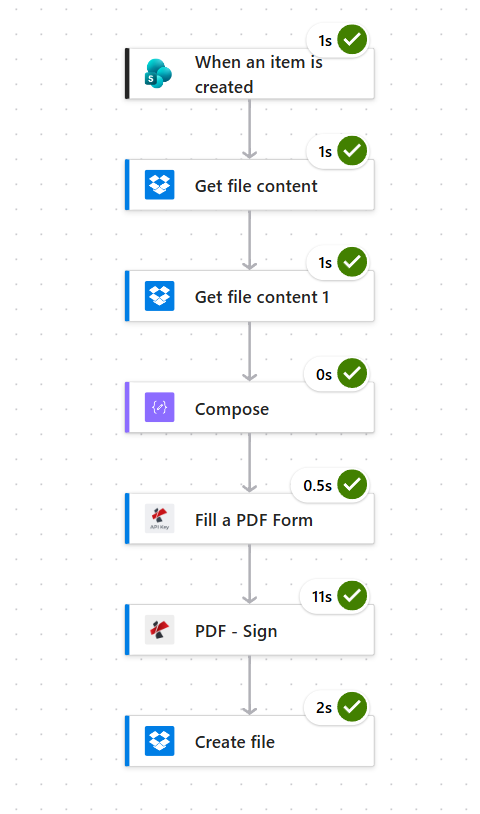
        <content type="html"><![CDATA[<img class="blog-hero" src="https://pdf4me.com/blog/fill-pdf-when-a-new-item-created-in-sharepoint/hero-banner.svg?r=2" alt="Power Automate workflow: a new SharePoint list item is filled and signed by PDF4me, then saved to Dropbox">
<p><strong>Fill a PDF Form</strong> is the <strong>Power Automate</strong> action that accepts a fillable PDF template and a JSON payload, then hands back that same PDF with every field already populated. Pair it with <strong>PDF - Sign</strong> and a <strong>SharePoint When an item is created</strong> trigger, and invoice generation runs on its own: someone adds a row, Power Automate assembles the signed PDF, and Dropbox files it away under a timestamped name.</p>
<p>The bottleneck in invoice-style workflows was never the PDF itself, it is the <strong>manual step wedged in the middle</strong>. Someone opens the template, re-keys eight values from a spreadsheet row, prints it, signs it, scans it back, and uploads the result. Each of those fields is one more chance to misspell a customer name or lose a digit off the total. This guide swaps that whole routine for seven Power Automate actions: SharePoint raises the trigger, Dropbox hands over the template plus the signature image, PDF4me populates the form and applies the signature, and Dropbox saves the finished file. Every screenshot is real, the Compose expression is spelled out, the SharePoint schema is listed, and the sample signed invoice is yours to download.</p>
<div class="card" style="padding:18px 20px;border-radius:12px;margin:16px 0 18px;border:1px solid var(--ifm-color-emphasis-200);background:linear-gradient(180deg, rgba(54, 96, 179, 0.06) 0%, rgba(14, 165, 233, 0.04) 100%)"><div style="font-weight:800;margin-bottom:10px">The flow at a glance</div><div style="display:grid;grid-template-columns:repeat(auto-fit, minmax(220px, 1fr));gap:10px"><div style="padding:12px 14px;border-radius:10px;border:1px solid var(--ifm-color-emphasis-200);border-left:4px solid var(--ifm-color-primary);background:var(--ifm-background-color)"><div style="font-weight:700;margin-bottom:4px;font-size:0.94rem">1. When an item is created</div><div style="font-size:0.86rem;color:var(--ifm-font-color-secondary);line-height:1.5">Watches the New Customer Invoices list in SharePoint and starts the flow the moment a new row appears.</div></div><div style="padding:12px 14px;border-radius:10px;border:1px solid var(--ifm-color-emphasis-200);border-left:4px solid rgb(139,92,246);background:var(--ifm-background-color)"><div style="font-weight:700;margin-bottom:4px;font-size:0.94rem">2. Get file content</div><div style="font-size:0.86rem;color:var(--ifm-font-color-secondary);line-height:1.5">Pulls sample_fill_form.pdf from /blog data/fill a pdf/ in Dropbox. Leave Infer Content Type on Yes so the binary survives.</div></div><div style="padding:12px 14px;border-radius:10px;border:1px solid var(--ifm-color-emphasis-200);border-left:4px solid rgb(245,158,11);background:var(--ifm-background-color)"><div style="font-weight:700;margin-bottom:4px;font-size:0.94rem">3. Get file content 1</div><div style="font-size:0.86rem;color:var(--ifm-font-color-secondary);line-height:1.5">Grabs signature.png out of the same Dropbox folder, again with Infer Content Type set to Yes.</div></div><div style="padding:12px 14px;border-radius:10px;border:1px solid var(--ifm-color-emphasis-200);border-left:4px solid rgb(168,85,247);background:var(--ifm-background-color)"><div style="font-weight:700;margin-bottom:4px;font-size:0.94rem">4. Compose</div><div style="font-size:0.86rem;color:var(--ifm-font-color-secondary);line-height:1.5">Assembles a single JSON payload out of the SharePoint row: customerName, email, phone, invoiceNumber, invoiceDate, address, amount.</div></div><div style="padding:12px 14px;border-radius:10px;border:1px solid var(--ifm-color-emphasis-200);border-left:4px solid rgb(20,184,166);background:var(--ifm-background-color)"><div style="font-weight:700;margin-bottom:4px;font-size:0.94rem">5. Fill a PDF Form</div><div style="font-size:0.86rem;color:var(--ifm-font-color-secondary);line-height:1.5">PDF4me step. Feed the PDF binary to Template File Data, the Compose result to JSON Data, and set Keep PDF template Editable to No.</div></div><div style="padding:12px 14px;border-radius:10px;border:1px solid var(--ifm-color-emphasis-200);border-left:4px solid rgb(239,68,68);background:var(--ifm-background-color)"><div style="font-weight:700;margin-bottom:4px;font-size:0.94rem">6. PDF - Sign</div><div style="font-size:0.86rem;color:var(--ifm-font-color-secondary);line-height:1.5">PDF4me step. Drops signature.png bottom-right on page 1 at 50 wide by 20 high, margin 15, full opacity 100.</div></div><div style="padding:12px 14px;border-radius:10px;border:1px solid var(--ifm-color-emphasis-200);border-left:4px solid rgb(16,185,129);background:var(--ifm-background-color)"><div style="font-weight:700;margin-bottom:4px;font-size:0.94rem">7. Create file</div><div style="font-size:0.86rem;color:var(--ifm-font-color-secondary);line-height:1.5">Writes to Dropbox /blog data/fill a pdf/output with a File Name built by concat(Signed_, invoiceNumber, _, ticks(utcNow()), .pdf).</div></div></div></div>
<!-- -->
<div class="card" style="padding:16px 18px;border-radius:12px;margin:14px 0 20px;border:1px solid var(--ifm-color-emphasis-200);background:linear-gradient(135deg, rgba(16,185,129,0.08) 0%, rgba(59,130,246,0.06) 100%)"><div style="font-weight:800;margin-bottom:6px">Short version</div><div style="font-size:0.95rem;line-height:1.55;color:var(--ifm-font-color-secondary)"><p>A SharePoint list trigger fires on each new invoice row. Dropbox provides the fillable PDF template and a PNG signature. Compose turns the row into a JSON payload. PDF4me Fill a PDF Form writes that data into the template, PDF4me PDF - Sign adds the signature, and Dropbox stores the result under a filename that carries both a timestamp and the invoice number.</p></div></div>
<h2 class="anchor anchorTargetStickyNavbar_zl4v" id="why-each-step-is-here-on-purpose">Why each step is here, on purpose<a href="https://pdf4me.com/blog/fill-pdf-when-a-new-item-created-in-sharepoint/#why-each-step-is-here-on-purpose" class="hash-link" aria-label="Direct link to Why each step is here, on purpose" title="Direct link to Why each step is here, on purpose" translate="no">​</a></h2>
<div style="display:grid;grid-template-columns:repeat(auto-fit, minmax(240px, 1fr));gap:12px;margin:10px 0 22px"><div style="padding:14px 16px;border-radius:10px;border:1px solid var(--ifm-color-emphasis-200);border-left:4px solid var(--ifm-color-primary);background:var(--ifm-background-color)"><div style="font-weight:700;margin-bottom:6px;font-size:0.95rem">Why SharePoint as the trigger?</div><div style="font-size:0.88rem;color:var(--ifm-font-color-secondary);line-height:1.55">Nearly every sales, ops, and finance team is already logging customer or invoice rows in a SharePoint list. Leaning on When an item is created lets people carry on exactly as they do today, they simply add a row.</div></div><div style="padding:14px 16px;border-radius:10px;border:1px solid var(--ifm-color-emphasis-200);border-left:4px solid var(--ifm-color-primary);background:var(--ifm-background-color)"><div style="font-weight:700;margin-bottom:6px;font-size:0.95rem">Why Compose in the middle?</div><div style="font-size:0.88rem;color:var(--ifm-font-color-secondary);line-height:1.55">PDF4me wants a single JSON payload. Compose lets you paste a JSON skeleton and drop trigger fields into it as dynamic content, so you never have to thread JSON handling through every action downstream.</div></div><div style="padding:14px 16px;border-radius:10px;border:1px solid var(--ifm-color-emphasis-200);border-left:4px solid var(--ifm-color-primary);background:var(--ifm-background-color)"><div style="font-weight:700;margin-bottom:6px;font-size:0.95rem">Why Fill a PDF Form and not Convert?</div><div style="font-size:0.88rem;color:var(--ifm-font-color-secondary);line-height:1.55">The template already carries named form fields. Fill a PDF Form writes into those fields by name and leaves your layout and design untouched, whereas Convert would flatten the file and rebuild it from scratch.</div></div><div style="padding:14px 16px;border-radius:10px;border:1px solid var(--ifm-color-emphasis-200);border-left:4px solid var(--ifm-color-primary);background:var(--ifm-background-color)"><div style="font-weight:700;margin-bottom:6px;font-size:0.95rem">Why PDF - Sign in the same flow?</div><div style="font-size:0.88rem;color:var(--ifm-font-color-secondary);line-height:1.55">The alternative, a separate DocuSign or Adobe Sign step, still needs a person to click. For internal, low-risk invoices a stamped signature does the job and keeps the whole flow untouched by human hands.</div></div></div>
<hr>
<h2 class="anchor anchorTargetStickyNavbar_zl4v" id="what-you-will-end-up-with">What you will end up with<a href="https://pdf4me.com/blog/fill-pdf-when-a-new-item-created-in-sharepoint/#what-you-will-end-up-with" class="hash-link" aria-label="Direct link to What you will end up with" title="Direct link to What you will end up with" translate="no">​</a></h2>
<p>A single Power Automate flow that keeps an eye on a SharePoint list and, for every row that arrives, turns out a filled and signed PDF invoice named <code>Signed_INV-YYYY-NNN_&lt;ticks&gt;.pdf</code> in your Dropbox output folder. The signature sits in the bottom-right corner of page 1, and everything else in the template stays exactly as your designer laid it out.</p>
<hr>
<h2 class="anchor anchorTargetStickyNavbar_zl4v" id="what-you-will-need-first">What you will need first<a href="https://pdf4me.com/blog/fill-pdf-when-a-new-item-created-in-sharepoint/#what-you-will-need-first" class="hash-link" aria-label="Direct link to What you will need first" title="Direct link to What you will need first" translate="no">​</a></h2>
<ul>
<li class="">A <strong>SharePoint site</strong> holding a list named <code>New Customer Invoices</code> (rename it to whatever suits you) with these columns:<!-- -->
<ul>
<li class=""><code>Title</code>, <code>CustomerName</code>, <code>Email</code>, <code>Phone</code> (all Single line of text)</li>
<li class=""><code>InvoiceNumber</code> (Single line of text, e.g. <code>INV-2026-207</code>)</li>
<li class=""><code>InvoiceDate</code> (Date), <code>Address</code> (Single line of text), <code>Amount</code> (Number)</li>
</ul>
</li>
<li class="">A <strong>PDF template</strong> whose named form fields line up with the JSON keys (<code>customerName</code>, <code>email</code>, <code>phone</code>, <code>invoiceNumber</code>, <code>invoiceDate</code>, <code>address</code>, <code>amount</code>).</li>
<li class="">A <strong>PNG signature</strong> on a transparent background.</li>
<li class="">A <strong>PDF4me connection</strong> inside Power Automate. First flow? <a href="https://dev.pdf4me.com/dashboard/#/api-keys/" target="_blank" rel="noopener noreferrer" class="">Grab an API key</a> to set it up.</li>
<li class="">A <strong>Dropbox connection</strong> in Power Automate — SharePoint, OneDrive, or any other store slots in just as cleanly.</li>
</ul>
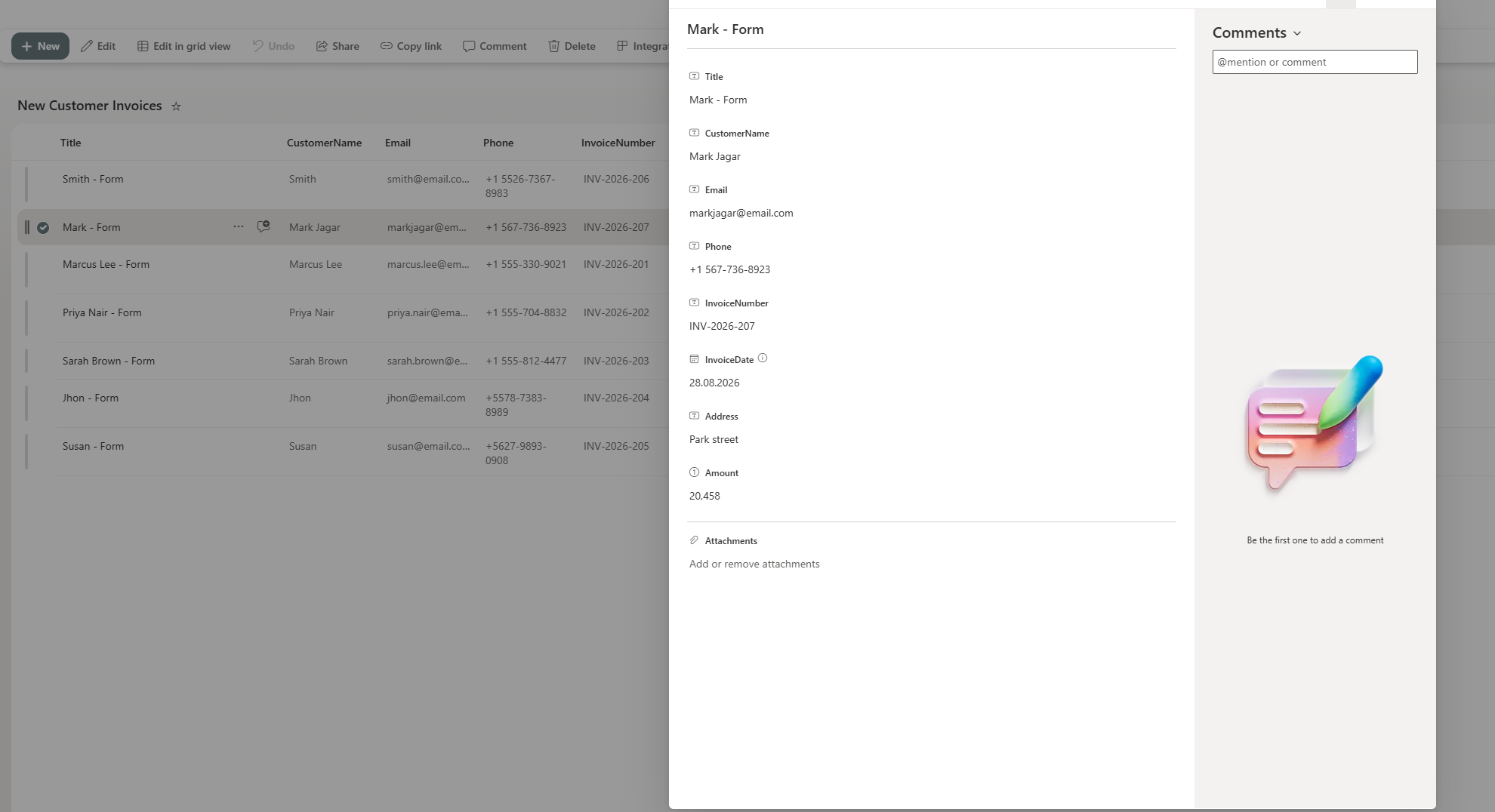
<div class="card" style="padding:16px 18px;border-radius:12px;margin:14px 0 22px;border:1px solid var(--ifm-color-emphasis-200);border-left:4px solid rgb(16,185,129);background:linear-gradient(135deg, rgba(16,185,129,0.09) 0%, rgba(16,185,129,0.03) 100%)"><div style="font-weight:800;margin-bottom:6px">Sample signed PDF output</div><div style="font-size:0.9rem;color:var(--ifm-font-color-secondary);margin-bottom:10px">Grab the actual signed invoice this flow generated for row INV-2026-207 (Mark Jagar).</div><a href="https://pdf4me.com/blog/fill-pdf-when-a-new-item-created-in-sharepoint/signed-invoice-sample.pdf" download="" style="font-weight:700;color:rgb(16,185,129)">↓ signed-invoice-sample.pdf</a></div>
<hr>
<h2 class="anchor anchorTargetStickyNavbar_zl4v" id="the-seven-actions-end-to-end">The seven actions, end to end<a href="https://pdf4me.com/blog/fill-pdf-when-a-new-item-created-in-sharepoint/#the-seven-actions-end-to-end" class="hash-link" aria-label="Direct link to The seven actions, end to end" title="Direct link to The seven actions, end to end" translate="no">​</a></h2>
<p>Seven Power Automate actions in a straight line — no parallel branches, no Apply to each, no variables. What one step outputs feeds straight into the next.</p>
<div style="text-align:center;margin:18px 0"><img src="https://pdf4me.com/blog/fill-pdf-when-a-new-item-created-in-sharepoint/01-flow-overview.png" alt="Power Automate flow overview showing seven sequential actions: SharePoint When an item is created, Dropbox Get file content, Dropbox Get file content 1, Compose, PDF4me Fill a PDF Form, PDF4me PDF - Sign, and Dropbox Create file, each with a green check mark and run duration" style="max-width:380px;border-radius:10px;border:1px solid var(--ifm-color-emphasis-200)"><div style="font-size:0.86rem;color:var(--ifm-font-color-secondary);margin-top:8px">The full designer view: trigger through Create file, seven actions in all.</div></div>
<p>The SharePoint list is the contract here. Each row that arrives turns into exactly one signed PDF.</p>
<div style="text-align:center;margin:18px 0"><img src="https://pdf4me.com/blog/fill-pdf-when-a-new-item-created-in-sharepoint/02-sharepoint-list-input.png" alt="SharePoint list called New Customer Invoices with eight rows. The Mark Jagar row is selected showing CustomerName Mark Jagar, Email markjagar at email.com, Phone plus1 567 736 8923, InvoiceNumber INV-2026-207, InvoiceDate 28.08.2026, Address Park street, Amount 20458" style="max-width:780px;border-radius:10px;border:1px solid var(--ifm-color-emphasis-200)"><div style="font-size:0.86rem;color:var(--ifm-font-color-secondary);margin-top:8px">The New Customer Invoices list. Row INV-2026-207 (Mark Jagar) is the one behind the sample above.</div></div>
<hr>
<h2 class="anchor anchorTargetStickyNavbar_zl4v" id="how-do-you-start-the-flow-when-a-new-sharepoint-row-appears">How do you start the flow when a new SharePoint row appears?<a href="https://pdf4me.com/blog/fill-pdf-when-a-new-item-created-in-sharepoint/#how-do-you-start-the-flow-when-a-new-sharepoint-row-appears" class="hash-link" aria-label="Direct link to How do you start the flow when a new SharePoint row appears?" title="Direct link to How do you start the flow when a new SharePoint row appears?" translate="no">​</a></h2>
<p><strong>Flow so far:</strong> trigger only.</p>
<ol>
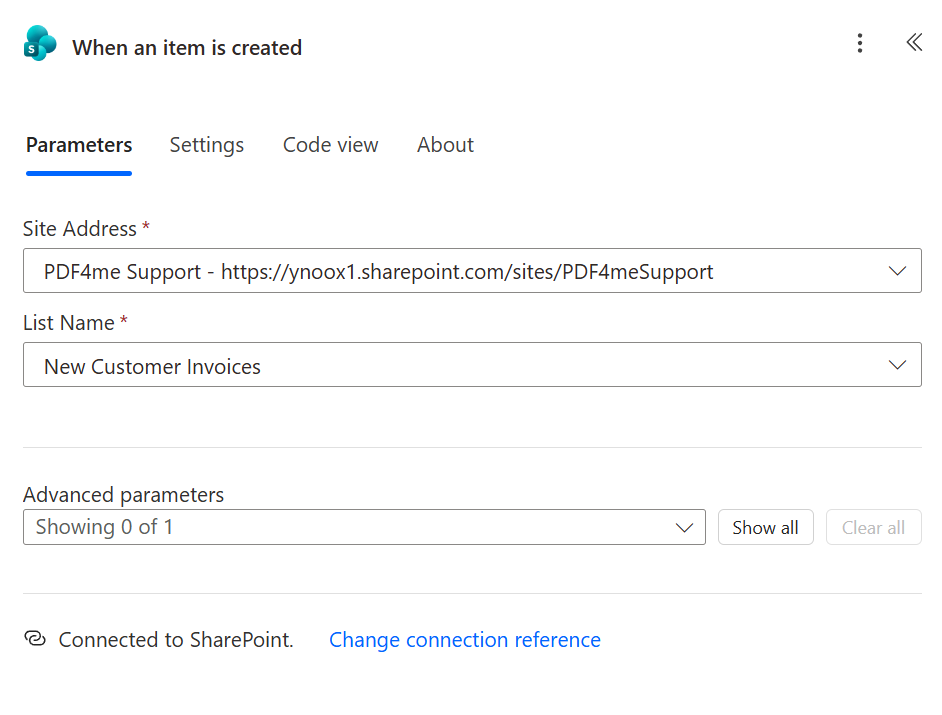
<li class="">Create a new Automated cloud flow, search <strong>SharePoint</strong>, and choose <strong>When an item is created</strong>.</li>
<li class="">Point <strong>Site Address</strong> at your SharePoint site (the screenshot uses <code>PDF4me Support</code> at <code>https://ynoox1.sharepoint.com/sites/PDF4meSupport</code>).</li>
<li class="">Set <strong>List Name</strong> to <code>New Customer Invoices</code>.</li>
<li class="">Leave <strong>Advanced parameters</strong> as they are. The trigger goes off the instant a row lands, with no polling interval to fiddle with.</li>
</ol>
<div style="text-align:center;margin:18px 0"><img src="https://pdf4me.com/blog/fill-pdf-when-a-new-item-created-in-sharepoint/03-sharepoint-trigger.png" alt="Power Automate When an item is created trigger with Site Address set to PDF4me Support SharePoint site and List Name set to New Customer Invoices" style="max-width:640px;border-radius:10px;border:1px solid var(--ifm-color-emphasis-200)"><div style="font-size:0.86rem;color:var(--ifm-font-color-secondary);margin-top:8px">Site plus list is the whole trigger setup — SharePoint takes care of change detection.</div></div>
<blockquote>
<p><strong>Tip.</strong> Where you can, rename the SharePoint columns to match the PDF field names (<code>customerName</code>, <code>email</code>, ...). It spares you from re-labelling keys in the Compose step down the line.</p>
</blockquote>
<hr>
<h2 class="anchor anchorTargetStickyNavbar_zl4v" id="how-do-you-feed-the-pdf-template-and-signature-into-the-flow">How do you feed the PDF template and signature into the flow?<a href="https://pdf4me.com/blog/fill-pdf-when-a-new-item-created-in-sharepoint/#how-do-you-feed-the-pdf-template-and-signature-into-the-flow" class="hash-link" aria-label="Direct link to How do you feed the PDF template and signature into the flow?" title="Direct link to How do you feed the PDF template and signature into the flow?" translate="no">​</a></h2>
<p><strong>Flow so far:</strong> trigger → <strong>Get file content</strong> → <strong>Get file content 1</strong>.</p>
<p>Two Dropbox reads: one for the PDF template, one for the signature PNG. Keeping both in the same folder means nobody has to go looking for them later.</p>
<ol>
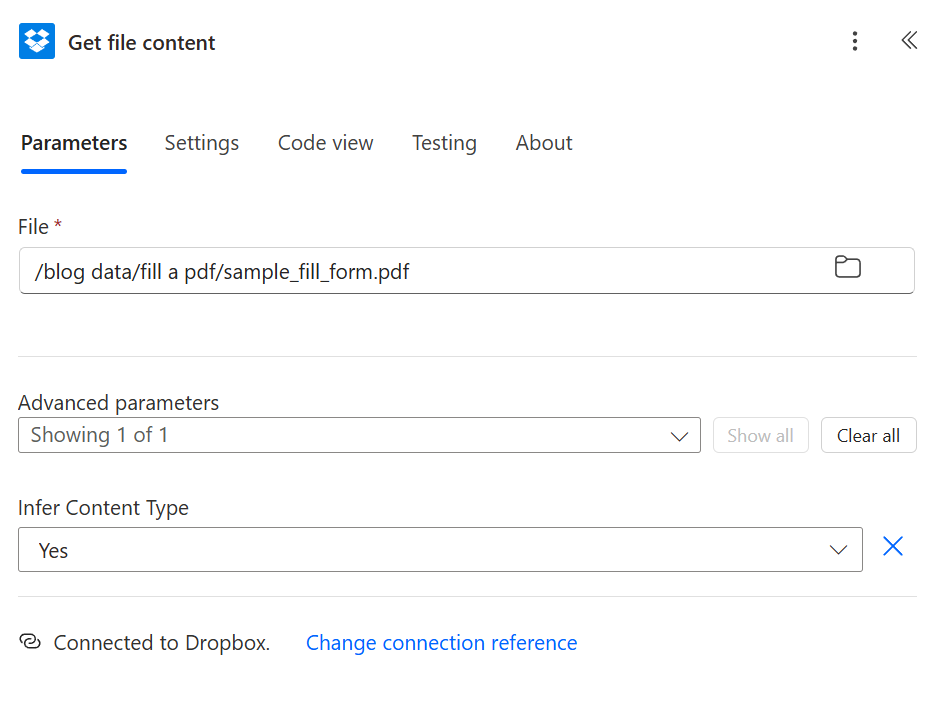
<li class="">Add <strong>Dropbox - Get file content using path</strong> and set <strong>File</strong> to <code>/blog data/fill a pdf/sample_fill_form.pdf</code>.</li>
<li class="">Open <strong>Advanced parameters</strong> and switch <strong>Infer Content Type</strong> to <strong>Yes</strong>, otherwise the PDF binary can get garbled in transit.</li>
</ol>
<div style="text-align:center;margin:18px 0"><img src="https://pdf4me.com/blog/fill-pdf-when-a-new-item-created-in-sharepoint/04-dropbox-get-template.png" alt="Dropbox Get file content using path action with File set to /blog data/fill a pdf/sample_fill_form.pdf and Infer Content Type set to Yes" style="max-width:620px;border-radius:10px;border:1px solid var(--ifm-color-emphasis-200)"><div style="font-size:0.86rem;color:var(--ifm-font-color-secondary);margin-top:8px">Step 2 — the empty template that Fill a PDF Form is about to fill in.</div></div>
<ol start="3">
<li class="">Drop in a second <strong>Dropbox - Get file content using path</strong>; Power Automate automatically renames it <code>Get file content 1</code>.</li>
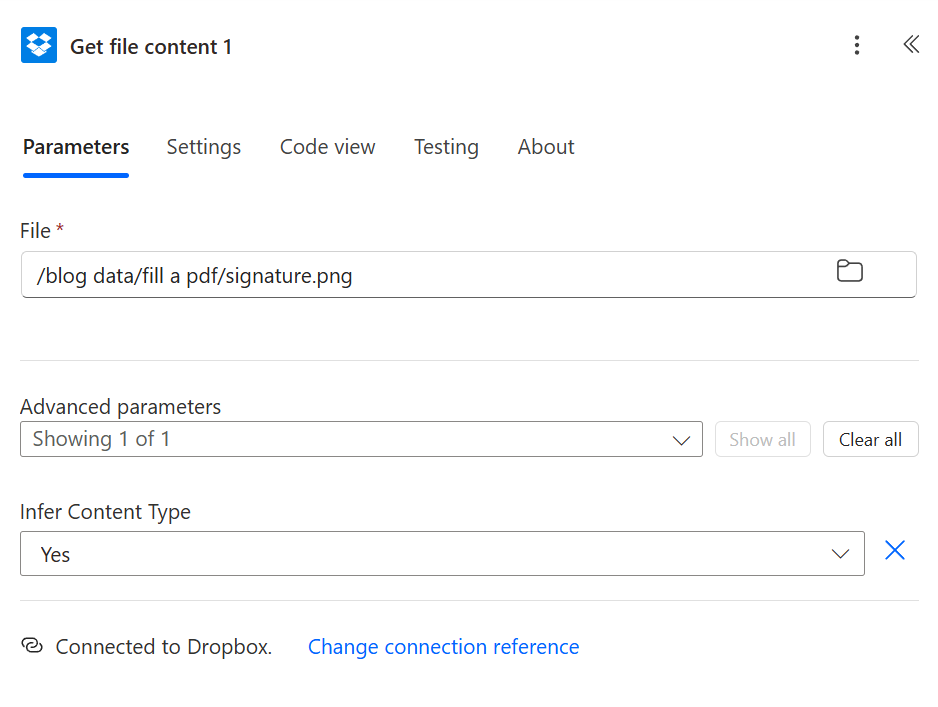
<li class="">Set <strong>File</strong> to <code>/blog data/fill a pdf/signature.png</code>.</li>
<li class="">Flip the same <strong>Infer Content Type</strong> toggle to <strong>Yes</strong>.</li>
</ol>
<div style="text-align:center;margin:18px 0"><img src="https://pdf4me.com/blog/fill-pdf-when-a-new-item-created-in-sharepoint/05-dropbox-get-signature.png" alt="Second Dropbox Get file content 1 action with File set to /blog data/fill a pdf/signature.png and Infer Content Type set to Yes" style="max-width:620px;border-radius:10px;border:1px solid var(--ifm-color-emphasis-200)"><div style="font-size:0.86rem;color:var(--ifm-font-color-secondary);margin-top:8px">Step 3 — the signature that PDF - Sign will lay over page 1.</div></div>
<h2 class="anchor anchorTargetStickyNavbar_zl4v" id="how-do-you-turn-the-sharepoint-row-into-a-json-payload">How do you turn the SharePoint row into a JSON payload?<a href="https://pdf4me.com/blog/fill-pdf-when-a-new-item-created-in-sharepoint/#how-do-you-turn-the-sharepoint-row-into-a-json-payload" class="hash-link" aria-label="Direct link to How do you turn the SharePoint row into a JSON payload?" title="Direct link to How do you turn the SharePoint row into a JSON payload?" translate="no">​</a></h2>
<p><strong>Flow so far:</strong> trigger → Get template → Get signature → <strong>Compose</strong>.</p>
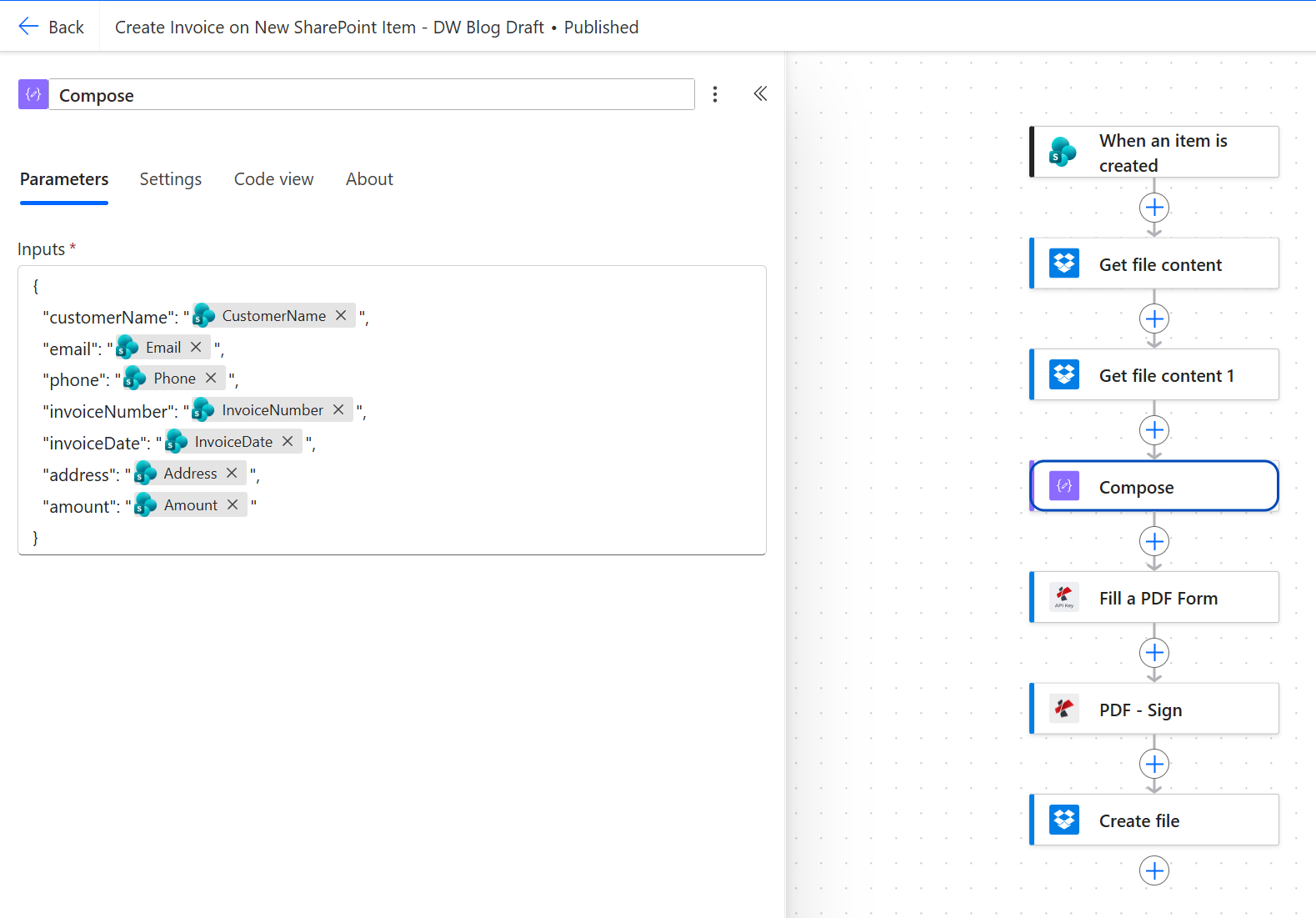
<p>Compose is the "build the JSON" step. It pulls in the trigger fields as dynamic content and lays them into a single JSON object that PDF4me Fill a PDF Form can read.</p>
<ol>
<li class="">Add a <strong>Compose</strong> action.</li>
<li class="">Click <strong>Inputs</strong>, paste the JSON skeleton below, and swap each right-hand value for the matching SharePoint column from the dynamic-content picker, keeping every pill <strong>between the quotes</strong>:</li>
</ol>
<div class="language-json codeBlockContainer_IfEc theme-code-block" style="--prism-color:#393A34;--prism-background-color:#f6f8fa"><div class="codeBlockContent_Drer"><pre tabindex="0" class="prism-code language-json codeBlock_CgJj thin-scrollbar" style="color:#393A34;background-color:#f6f8fa"><code class="codeBlockLines_BEr3"><div class="token-line" style="color:#393A34"><span class="token punctuation" style="color:#393A34">{</span><span class="token plain"></span><br></div><div class="token-line" style="color:#393A34"><span class="token plain">  </span><span class="token property" style="color:#36acaa">"customerName"</span><span class="token operator" style="color:#393A34">:</span><span class="token plain"> </span><span class="token string" style="color:#e3116c">"CustomerName"</span><span class="token punctuation" style="color:#393A34">,</span><span class="token plain"></span><br></div><div class="token-line" style="color:#393A34"><span class="token plain">  </span><span class="token property" style="color:#36acaa">"email"</span><span class="token operator" style="color:#393A34">:</span><span class="token plain"> </span><span class="token string" style="color:#e3116c">"Email"</span><span class="token punctuation" style="color:#393A34">,</span><span class="token plain"></span><br></div><div class="token-line" style="color:#393A34"><span class="token plain">  </span><span class="token property" style="color:#36acaa">"phone"</span><span class="token operator" style="color:#393A34">:</span><span class="token plain"> </span><span class="token string" style="color:#e3116c">"Phone"</span><span class="token punctuation" style="color:#393A34">,</span><span class="token plain"></span><br></div><div class="token-line" style="color:#393A34"><span class="token plain">  </span><span class="token property" style="color:#36acaa">"invoiceNumber"</span><span class="token operator" style="color:#393A34">:</span><span class="token plain"> </span><span class="token string" style="color:#e3116c">"InvoiceNumber"</span><span class="token punctuation" style="color:#393A34">,</span><span class="token plain"></span><br></div><div class="token-line" style="color:#393A34"><span class="token plain">  </span><span class="token property" style="color:#36acaa">"invoiceDate"</span><span class="token operator" style="color:#393A34">:</span><span class="token plain"> </span><span class="token string" style="color:#e3116c">"InvoiceDate"</span><span class="token punctuation" style="color:#393A34">,</span><span class="token plain"></span><br></div><div class="token-line" style="color:#393A34"><span class="token plain">  </span><span class="token property" style="color:#36acaa">"address"</span><span class="token operator" style="color:#393A34">:</span><span class="token plain"> </span><span class="token string" style="color:#e3116c">"Address"</span><span class="token punctuation" style="color:#393A34">,</span><span class="token plain"></span><br></div><div class="token-line" style="color:#393A34"><span class="token plain">  </span><span class="token property" style="color:#36acaa">"amount"</span><span class="token operator" style="color:#393A34">:</span><span class="token plain"> </span><span class="token string" style="color:#e3116c">"Amount"</span><span class="token plain"></span><br></div><div class="token-line" style="color:#393A34"><span class="token plain"></span><span class="token punctuation" style="color:#393A34">}</span><br></div></code></pre></div></div>
<div style="text-align:center;margin:18px 0"><img src="https://pdf4me.com/blog/fill-pdf-when-a-new-item-created-in-sharepoint/06-compose-json.png" alt="Compose action with Inputs field showing a JSON object whose seven values are SharePoint trigger dynamic-content pills placed between the quotes of each key" style="max-width:780px;border-radius:10px;border:1px solid var(--ifm-color-emphasis-200)"><div style="font-size:0.86rem;color:var(--ifm-font-color-secondary);margin-top:8px">Compose returns a single JSON object. Keep each pill inside its quotes so numbers and dates come through as strings, and make sure the keys match the PDF field names to the letter.</div></div>
<p>Payload reference:</p>
<table><thead><tr><th>JSON key</th><th>Source (SharePoint column)</th><th>Type</th><th>Notes</th></tr></thead><tbody><tr><td><code>customerName</code></td><td><code>CustomerName</code></td><td>Text</td><td>Passed straight through.</td></tr><tr><td><code>email</code></td><td><code>Email</code></td><td>Text</td><td>Any string; nothing validates the format here.</td></tr><tr><td><code>phone</code></td><td><code>Phone</code></td><td>Text</td><td>Leave it as text — don't cast to Number, since extensions and hyphens matter.</td></tr><tr><td><code>invoiceNumber</code></td><td><code>InvoiceNumber</code></td><td>Text</td><td>Reused later in the output filename too.</td></tr><tr><td><code>invoiceDate</code></td><td><code>InvoiceDate</code></td><td>Date</td><td>With the pill inside quotes, Compose sends it as text rather than an ISO Date object.</td></tr><tr><td><code>address</code></td><td><code>Address</code></td><td>Text</td><td>A single line.</td></tr><tr><td><code>amount</code></td><td><code>Amount</code></td><td>Number</td><td>Inside quotes, so the JSON carries it as a quoted value.</td></tr></tbody></table>
<blockquote>
<p><strong>Tip.</strong> Always land the dynamic-content pill <strong>between the two quotes</strong> of each value. Placed outside them, a pill emits a bare number or date, and an unquoted number followed by a <code>,</code> mid-string will break the payload with no warning.</p>
</blockquote>
<hr>
<h2 class="anchor anchorTargetStickyNavbar_zl4v" id="how-do-you-populate-the-pdf-form-from-the-json">How do you populate the PDF form from the JSON?<a href="https://pdf4me.com/blog/fill-pdf-when-a-new-item-created-in-sharepoint/#how-do-you-populate-the-pdf-form-from-the-json" class="hash-link" aria-label="Direct link to How do you populate the PDF form from the JSON?" title="Direct link to How do you populate the PDF form from the JSON?" translate="no">​</a></h2>
<p><strong>Flow so far:</strong> trigger → Get template → Get signature → Compose → <strong>Fill a PDF Form</strong>.</p>
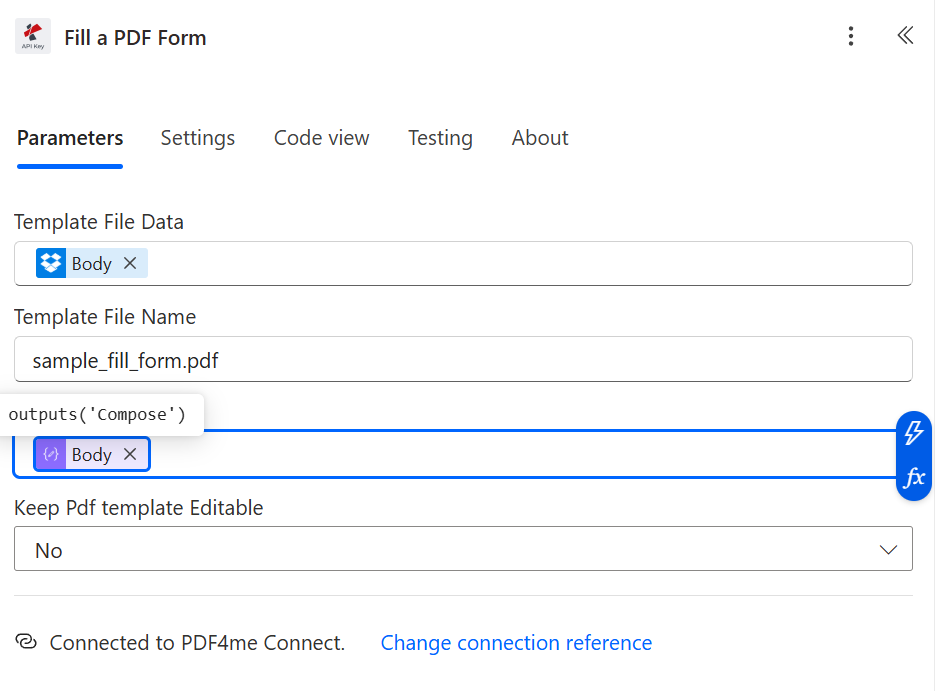
<p>Here is the first PDF4me action. It takes the template PDF plus the JSON payload and writes each value into the form field that shares its name.</p>
<ol>
<li class="">Add the <strong>PDF4me PDF</strong> connector and pick the <strong>Fill a PDF Form</strong> action.</li>
<li class=""><strong>Template File Data</strong>: dynamic content, <strong>Get file content</strong> → <strong>File Content</strong> (the template PDF binary).</li>
<li class=""><strong>Template File Name</strong>: <code>sample_fill_form.pdf</code> (or whatever yours is named).</li>
<li class=""><strong>JSON Data</strong>: dynamic content, the <strong>Outputs</strong> of the Compose step.</li>
<li class=""><strong>Keep PDF template Editable</strong>: <strong>No</strong> — this flattens the form once filled, so the recipient can't wipe the fields.</li>
</ol>
<div style="text-align:center;margin:18px 0"><img src="https://pdf4me.com/blog/fill-pdf-when-a-new-item-created-in-sharepoint/07-fill-pdf-form.png" alt="PDF4me Fill a PDF Form action with Template File Data mapped from Dropbox Body, Template File Name sample_fill_form.pdf, JSON Data mapped from Compose Outputs, and Keep PDF Template Editable set to No" style="max-width:780px;border-radius:10px;border:1px solid var(--ifm-color-emphasis-200)"><div style="font-size:0.86rem;color:var(--ifm-font-color-secondary);margin-top:8px">The Fill a PDF Form setup. With Keep PDF template Editable on No, the fields flatten into static text.</div></div>
<blockquote>
<p><strong>Tip.</strong> Want the recipient to still edit certain fields later (adding a memo, say)? Set <strong>Keep PDF template Editable</strong> to <strong>Yes</strong>. Your filled values remain; only the field lock changes.</p>
</blockquote>
<hr>
<h2 class="anchor anchorTargetStickyNavbar_zl4v" id="how-do-you-stamp-on-the-signature-with-pdf---sign">How do you stamp on the signature with PDF - Sign?<a href="https://pdf4me.com/blog/fill-pdf-when-a-new-item-created-in-sharepoint/#how-do-you-stamp-on-the-signature-with-pdf---sign" class="hash-link" aria-label="Direct link to How do you stamp on the signature with PDF - Sign?" title="Direct link to How do you stamp on the signature with PDF - Sign?" translate="no">​</a></h2>
<p><strong>Flow so far:</strong> trigger → Get template → Get signature → Compose → Fill a PDF Form → <strong>PDF - Sign</strong>.</p>
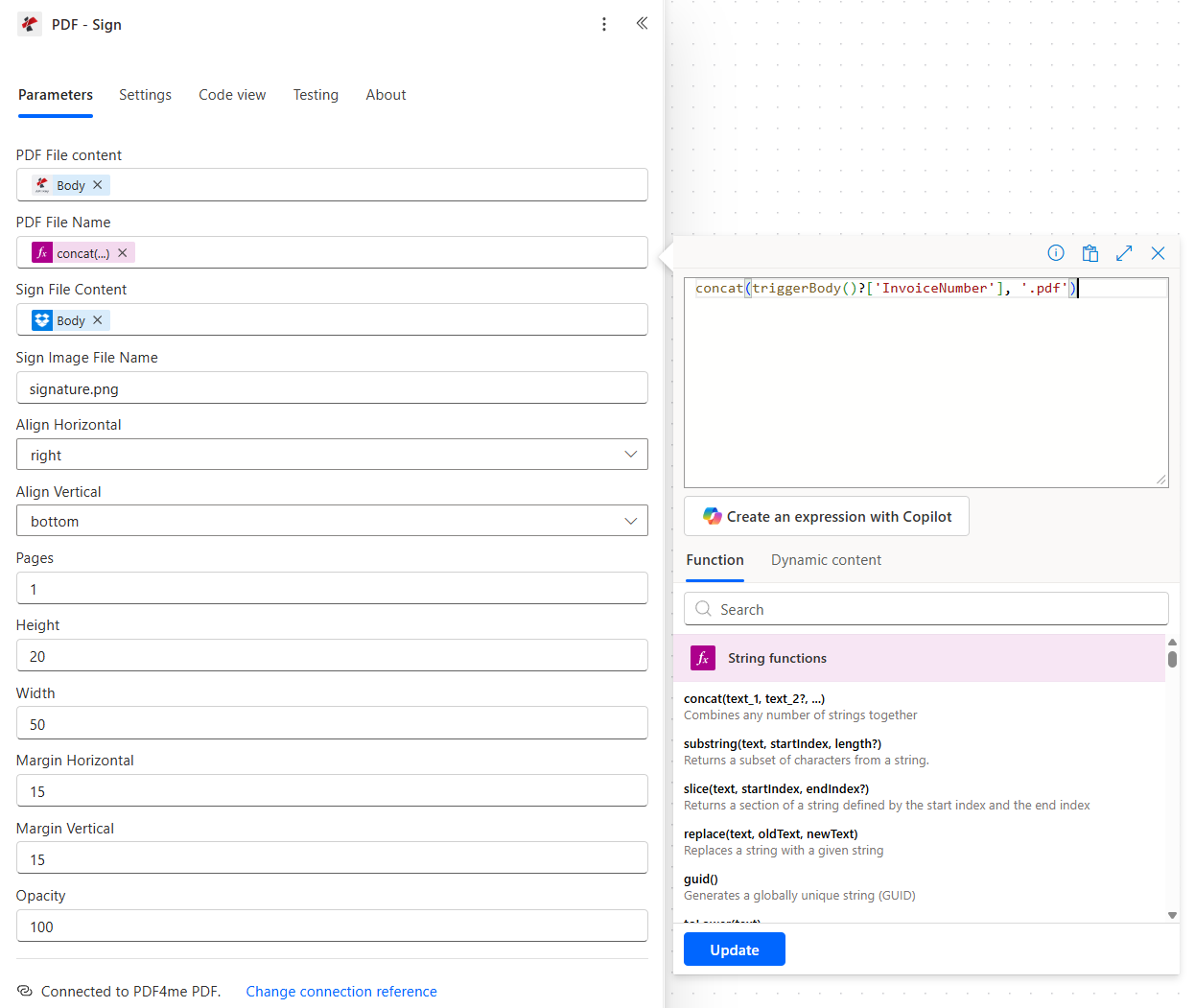
<p>PDF - Sign lays your signature PNG over the filled PDF at a fixed spot and whatever opacity you set.</p>
<ol>
<li class="">Add the <strong>PDF4me PDF</strong> connector, action <strong>PDF - Sign</strong>.</li>
<li class=""><strong>PDF File content</strong>: dynamic content, <strong>Fill a PDF Form</strong> → <strong>Body</strong> (the filled PDF binary).</li>
<li class=""><strong>PDF File Name</strong>: the expression <code>concat(triggerBody()?['InvoiceNumber'], '.pdf')</code>, which yields <code>INV-2026-207.pdf</code> so the invoice number shows up in later logs.</li>
<li class=""><strong>Sign File Content</strong>: dynamic content, <strong>Get file content 1</strong> → <strong>Body</strong> (the signature PNG).</li>
<li class=""><strong>Sign Image File Name</strong>: <code>signature.png</code>.</li>
<li class=""><strong>Align Horizontal</strong>: <strong>right</strong>. <strong>Align Vertical</strong>: <strong>bottom</strong>.</li>
<li class=""><strong>Pages</strong>: <code>1</code> (just page 1 — use <code>1,3</code> for pages 1 and 3, or leave it empty to sign every page).</li>
<li class=""><strong>Height</strong>: <code>20</code>. <strong>Width</strong>: <code>50</code>. <strong>Margin Horizontal</strong>: <code>15</code>. <strong>Margin Vertical</strong>: <code>15</code>. <strong>Opacity</strong>: <code>100</code>.</li>
</ol>
<div style="text-align:center;margin:18px 0"><img src="https://pdf4me.com/blog/fill-pdf-when-a-new-item-created-in-sharepoint/08-pdf-sign.png" alt="PDF4me PDF - Sign action with PDF File content from Fill a PDF Form Body, PDF File Name a concat expression, Sign File Content from Get file content 1 Body, Align Horizontal right, Align Vertical bottom, Pages 1, Height 20, Width 50, Margin 15, Opacity 100" style="max-width:780px;border-radius:10px;border:1px solid var(--ifm-color-emphasis-200)"><div style="font-size:0.86rem;color:var(--ifm-font-color-secondary);margin-top:8px">The signature settles bottom-right of page 1: 50 wide, 20 high, 15 units of margin, fully opaque.</div></div>
<p>Positioning reference:</p>
<table><thead><tr><th>Field</th><th>What it controls</th><th>Example</th></tr></thead><tbody><tr><td><strong>Align Horizontal</strong></td><td>Which edge, left to right</td><td><code>left</code>, <code>center</code>, <code>right</code></td></tr><tr><td><strong>Align Vertical</strong></td><td>Top, middle, or bottom band</td><td><code>top</code>, <code>center</code>, <code>bottom</code></td></tr><tr><td><strong>Pages</strong></td><td>Which pages get stamped</td><td><code>1</code> (first only), <code>1,3</code> (first and third), empty (every page)</td></tr><tr><td><strong>Height / Width</strong></td><td>Size of the signature box in PDF units</td><td>Match your signature.png ratio or it will stretch</td></tr><tr><td><strong>Margin Horizontal / Vertical</strong></td><td>Distance from the aligned edge</td><td><code>15</code> = 15 units in from the right edge when Align is right</td></tr><tr><td><strong>Opacity</strong></td><td>0 to 100</td><td><code>100</code> is fully opaque; drop to <code>70</code> for a watermark look</td></tr></tbody></table>
<hr>
<h2 class="anchor anchorTargetStickyNavbar_zl4v" id="how-do-you-write-the-signed-pdf-back-to-dropbox">How do you write the signed PDF back to Dropbox?<a href="https://pdf4me.com/blog/fill-pdf-when-a-new-item-created-in-sharepoint/#how-do-you-write-the-signed-pdf-back-to-dropbox" class="hash-link" aria-label="Direct link to How do you write the signed PDF back to Dropbox?" title="Direct link to How do you write the signed PDF back to Dropbox?" translate="no">​</a></h2>
<p><strong>Flow so far:</strong> trigger → Get template → Get signature → Compose → Fill a PDF Form → PDF - Sign → <strong>Create file</strong>.</p>
<p>The final step. The finished PDF drops into a dedicated output folder under a filename engineered so two runs can never clash.</p>
<ol>
<li class="">Add <strong>Dropbox - Create file</strong>.</li>
<li class=""><strong>Folder Path</strong>: <code>/blog data/fill a pdf/output</code>.</li>
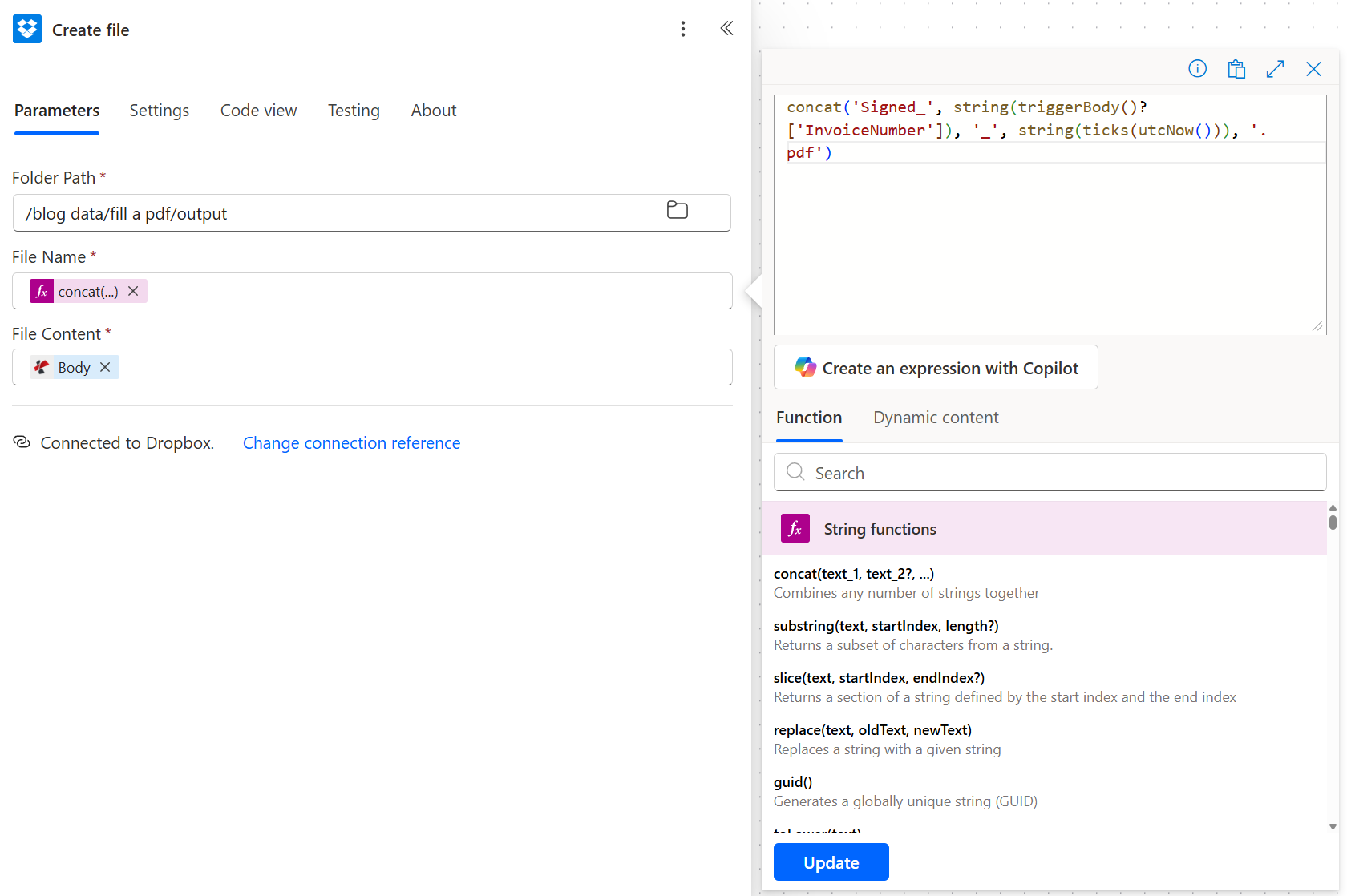
<li class=""><strong>File Name</strong>: the expression <code>concat('Signed_', string(triggerBody()?['InvoiceNumber']), '_', string(ticks(utcNow())), '.pdf')</code>, which produces names such as <code>Signed_INV-2026-207_639235162128009339.pdf</code>.</li>
<li class=""><strong>File Content</strong>: dynamic content, <strong>PDF - Sign</strong> → <strong>Body</strong> (the signed PDF binary).</li>
</ol>
<div style="text-align:center;margin:18px 0"><img src="https://pdf4me.com/blog/fill-pdf-when-a-new-item-created-in-sharepoint/09-dropbox-create-file.png" alt="Dropbox Create file action with Folder Path /blog data/fill a pdf/output, File Name built from a concat expression combining Signed_, the InvoiceNumber trigger field, the ticks of utcNow, and .pdf, and File Content mapped from PDF - Sign Body" style="max-width:900px;border-radius:10px;border:1px solid var(--ifm-color-emphasis-200)"><div style="font-size:0.86rem;color:var(--ifm-font-color-secondary);margin-top:8px">The ticks(utcNow()) timestamp keeps filenames unique even if two rows fire within the same second.</div></div>
<blockquote>
<p><strong>Tip.</strong> Trade Dropbox for <strong>SharePoint - Create file</strong> or <strong>OneDrive - Create file</strong> and nothing else in the flow moves. The PDF binary is identical; only the storage adapter differs.</p>
</blockquote>
<h2 class="anchor anchorTargetStickyNavbar_zl4v" id="run-it-and-check-the-result">Run it and check the result<a href="https://pdf4me.com/blog/fill-pdf-when-a-new-item-created-in-sharepoint/#run-it-and-check-the-result" class="hash-link" aria-label="Direct link to Run it and check the result" title="Direct link to Run it and check the result" translate="no">​</a></h2>
<div class="card" style="padding:16px 18px;border-radius:12px;margin:14px 0 22px;border:1px solid var(--ifm-color-emphasis-200);border-left:4px solid rgb(16,185,129);background:linear-gradient(135deg, rgba(16,185,129,0.09) 0%, rgba(16,185,129,0.03) 100%)"><div style="font-weight:800;margin-bottom:6px">So what did you just build?</div><div style="font-size:0.9rem;color:var(--ifm-font-color-secondary);line-height:1.55">Drop a row into <strong>New Customer Invoices</strong> (Title <em>Mark - Form</em>, CustomerName <em>Mark Jagar</em>, and so on). A few seconds later, <code>Signed_INV-2026-207_639235162128009339.pdf</code> appears in Dropbox <code>/blog data/fill a pdf/output</code>. Open it and you'll see the eight fields filled and the signature in the bottom-right of page 1 — the very file linked at the top of this post.</div></div>
<hr>
<h2 class="anchor anchorTargetStickyNavbar_zl4v" id="variations-you-can-bolt-on-without-a-rebuild">Variations you can bolt on without a rebuild<a href="https://pdf4me.com/blog/fill-pdf-when-a-new-item-created-in-sharepoint/#variations-you-can-bolt-on-without-a-rebuild" class="hash-link" aria-label="Direct link to Variations you can bolt on without a rebuild" title="Direct link to Variations you can bolt on without a rebuild" translate="no">​</a></h2>
<div style="display:grid;grid-template-columns:repeat(auto-fit, minmax(240px, 1fr));gap:12px;margin:10px 0 22px"><div style="padding:14px 16px;border-radius:10px;border:1px solid var(--ifm-color-emphasis-200);border-left:4px solid var(--ifm-color-primary);background:var(--ifm-background-color)"><div style="font-weight:700;margin-bottom:6px;font-size:0.95rem">Email the signed PDF too</div><div style="font-size:0.88rem;color:var(--ifm-font-color-secondary);line-height:1.55">Slot an Outlook Send an email (V2) after Create file and attach PDF - Sign Body as-is. The customer receives the invoice the same second Dropbox does.</div></div><div style="padding:14px 16px;border-radius:10px;border:1px solid var(--ifm-color-emphasis-200);border-left:4px solid rgb(139,92,246);background:var(--ifm-background-color)"><div style="font-weight:700;margin-bottom:6px;font-size:0.95rem">Skip Dropbox, use SharePoint</div><div style="font-size:0.88rem;color:var(--ifm-font-color-secondary);line-height:1.55">Swap the three Dropbox actions for SharePoint Get file content and SharePoint Create file. Neither PDF4me action changes at all.</div></div><div style="padding:14px 16px;border-radius:10px;border:1px solid var(--ifm-color-emphasis-200);border-left:4px solid rgb(20,184,166);background:var(--ifm-background-color)"><div style="font-weight:700;margin-bottom:6px;font-size:0.95rem">Sign every page, not just page 1</div><div style="font-size:0.88rem;color:var(--ifm-font-color-secondary);line-height:1.55">Empty the Pages field in PDF - Sign, or list them comma-separated (1,2,3). The same signature applies to each page you name.</div></div><div style="padding:14px 16px;border-radius:10px;border:1px solid var(--ifm-color-emphasis-200);border-left:4px solid rgb(245,158,11);background:var(--ifm-background-color)"><div style="font-weight:700;margin-bottom:6px;font-size:0.95rem">PDF4me vs Nutrient / Encodian / Plumsail</div><div style="font-size:0.88rem;color:var(--ifm-font-color-secondary);line-height:1.55">Those connectors split Fill and Sign across separate flows or charge per-user seats. PDF4me does both from one premium connector on a single API key.</div></div></div>
<hr>
<h2 class="anchor anchorTargetStickyNavbar_zl4v" id="common-questions">Common questions<a href="https://pdf4me.com/blog/fill-pdf-when-a-new-item-created-in-sharepoint/#common-questions" class="hash-link" aria-label="Direct link to Common questions" title="Direct link to Common questions" translate="no">​</a></h2>
<h3 class="anchor anchorTargetStickyNavbar_zl4v" id="how-to-fill-pdf-forms-using-power-automate">How to fill PDF forms using Power Automate?<a href="https://pdf4me.com/blog/fill-pdf-when-a-new-item-created-in-sharepoint/#how-to-fill-pdf-forms-using-power-automate" class="hash-link" aria-label="Direct link to How to fill PDF forms using Power Automate?" title="Direct link to How to fill PDF forms using Power Automate?" translate="no">​</a></h3>
<p>Drop the <strong>PDF4me Fill a PDF Form</strong> action after a step that reads your PDF template (a Dropbox, SharePoint, or OneDrive Get file content) and a Compose step that builds a JSON payload from your trigger fields. Map Template File Data to the PDF binary and JSON Data to the Compose output. The JSON keys have to match the template's form field names exactly.</p>
<h3 class="anchor anchorTargetStickyNavbar_zl4v" id="can-power-automate-fill-out-a-pdf-form">Can Power Automate fill out a PDF form?<a href="https://pdf4me.com/blog/fill-pdf-when-a-new-item-created-in-sharepoint/#can-power-automate-fill-out-a-pdf-form" class="hash-link" aria-label="Direct link to Can Power Automate fill out a PDF form?" title="Direct link to Can Power Automate fill out a PDF form?" translate="no">​</a></h3>
<p>Yes — with one connector action, once a PDF connector is installed. Power Automate can't write into a fillable PDF on its own, but the <strong>PDF4me Fill a PDF Form</strong> action handles the whole fill-and-flatten in a single step, driven by a JSON payload you assemble with Compose or straight from a SharePoint or Excel row.</p>
<h3 class="anchor anchorTargetStickyNavbar_zl4v" id="how-to-auto-fill-pdf-form-fields">How to auto fill PDF form fields?<a href="https://pdf4me.com/blog/fill-pdf-when-a-new-item-created-in-sharepoint/#how-to-auto-fill-pdf-form-fields" class="hash-link" aria-label="Direct link to How to auto fill PDF form fields?" title="Direct link to How to auto fill PDF form fields?" translate="no">​</a></h3>
<p>Trigger on your data source (a SharePoint list, an Excel row, a form submission), build a JSON object whose keys match the PDF field names, then hand that JSON and the template PDF to <strong>PDF4me Fill a PDF Form</strong>. It returns the same PDF with every named field filled. Set <strong>Keep PDF template Editable</strong> to <strong>No</strong> to lock the values so recipients can't clear them.</p>
<h3 class="anchor anchorTargetStickyNavbar_zl4v" id="how-to-create-a-pdf-using-power-automate-from-a-sharepoint-list-item">How to create a PDF using Power Automate from a SharePoint list item?<a href="https://pdf4me.com/blog/fill-pdf-when-a-new-item-created-in-sharepoint/#how-to-create-a-pdf-using-power-automate-from-a-sharepoint-list-item" class="hash-link" aria-label="Direct link to How to create a PDF using Power Automate from a SharePoint list item?" title="Direct link to How to create a PDF using Power Automate from a SharePoint list item?" translate="no">​</a></h3>
<p>Use <strong>When an item is created</strong> as your trigger, add a Get file content step to load the PDF template, a Compose step to shape the row into JSON, and <strong>PDF4me Fill a PDF Form</strong> to merge them. You get a filled PDF you can email, push to SharePoint, OneDrive, or Dropbox, or send into an approval flow. This post builds exactly that, with a signature stamp on top.</p>
<h3 class="anchor anchorTargetStickyNavbar_zl4v" id="how-to-auto-sign-pdf-in-power-automate">How to auto sign PDF in Power Automate?<a href="https://pdf4me.com/blog/fill-pdf-when-a-new-item-created-in-sharepoint/#how-to-auto-sign-pdf-in-power-automate" class="hash-link" aria-label="Direct link to How to auto sign PDF in Power Automate?" title="Direct link to How to auto sign PDF in Power Automate?" translate="no">​</a></h3>
<p>Add <strong>PDF4me PDF - Sign</strong> after any step that yields a PDF binary. Map PDF File content to the filled PDF, Sign File Content to a PNG signature, then set alignment (right / bottom), size (Height / Width), margins, and opacity. PDF - Sign stamps the image onto whichever pages you list; leave Pages blank to sign them all.</p>
<hr>
<h2 class="anchor anchorTargetStickyNavbar_zl4v" id="troubleshooting">Troubleshooting<a href="https://pdf4me.com/blog/fill-pdf-when-a-new-item-created-in-sharepoint/#troubleshooting" class="hash-link" aria-label="Direct link to Troubleshooting" title="Direct link to Troubleshooting" translate="no">​</a></h2>
<div style="display:grid;grid-template-columns:repeat(auto-fit, minmax(240px, 1fr));gap:12px;margin:10px 0 22px"><div style="padding:14px 16px;border-radius:10px;border:1px solid var(--ifm-color-emphasis-200);border-left:4px solid rgb(239,68,68);background:var(--ifm-background-color)"><div style="font-weight:700;margin-bottom:6px;font-size:0.95rem">Fill a PDF Form returns the template unchanged</div><div style="font-size:0.88rem;color:var(--ifm-font-color-secondary);line-height:1.55">The JSON keys aren't matching the PDF field names. Open the template in Adobe Acrobat, choose Prepare Form, and copy the field names exactly — they are case-sensitive.</div></div><div style="padding:14px 16px;border-radius:10px;border:1px solid var(--ifm-color-emphasis-200);border-left:4px solid rgb(245,158,11);background:var(--ifm-background-color)"><div style="font-weight:700;margin-bottom:6px;font-size:0.95rem">Signature comes out stretched or tiny</div><div style="font-size:0.88rem;color:var(--ifm-font-color-secondary);line-height:1.55">Height and Width are PDF units, not pixels. Match the ratio to your signature.png so it does not distort; 50 wide by 20 high suits most horizontal signatures.</div></div><div style="padding:14px 16px;border-radius:10px;border:1px solid var(--ifm-color-emphasis-200);border-left:4px solid var(--ifm-color-primary);background:var(--ifm-background-color)"><div style="font-weight:700;margin-bottom:6px;font-size:0.95rem">Compose emits invalid JSON</div><div style="font-size:0.88rem;color:var(--ifm-font-color-secondary);line-height:1.55">A dynamic-content pill landed outside its quotes, or a SharePoint value holds a stray double quote or newline. Keep every pill between its quotes and clean up user-entered text upstream in SharePoint.</div></div><div style="padding:14px 16px;border-radius:10px;border:1px solid var(--ifm-color-emphasis-200);border-left:4px solid rgb(30,58,95);background:var(--ifm-background-color)"><div style="font-weight:700;margin-bottom:6px;font-size:0.95rem">Dropbox Create file overwrites earlier runs</div><div style="font-size:0.88rem;color:var(--ifm-font-color-secondary);line-height:1.55">File Name resolved to the same string twice. The ticks(utcNow()) suffix in the concat is what guarantees uniqueness — drop it and runs will collide.</div></div></div>
<hr>
<h2 class="anchor anchorTargetStickyNavbar_zl4v" id="next-steps">Next steps<a href="https://pdf4me.com/blog/fill-pdf-when-a-new-item-created-in-sharepoint/#next-steps" class="hash-link" aria-label="Direct link to Next steps" title="Direct link to Next steps" translate="no">​</a></h2>
<div class="wrapper_cJa_ btnRowCenter_xvUr btn-row-center btn-row-wrap"><a href="https://docs.pdf4me.com/integration/power-automate/pdf/fill-pdf-form/" target="_blank" rel="noopener noreferrer" class="btn_No1N btn__fill_E_r5">Fill a PDF Form docs</a><a href="https://docs.pdf4me.com/integration/power-automate/edit/sign-pdf/" target="_blank" rel="noopener noreferrer" class="btn_No1N btn__outline_B76S">PDF - Sign docs</a><a href="https://dev.pdf4me.com/dashboard/#/api-keys/" target="_blank" rel="noopener noreferrer" class="btn_No1N btn__outline_B76S">Get your API key</a></div>
<p>This is the shortest hands-free route from a SharePoint row to a signed, stored PDF — and the two PDF4me actions in the middle are the only parts you can't get from Microsoft on their own.</p>
<h2 class="anchor anchorTargetStickyNavbar_zl4v" id="references">References<a href="https://pdf4me.com/blog/fill-pdf-when-a-new-item-created-in-sharepoint/#references" class="hash-link" aria-label="Direct link to References" title="Direct link to References" translate="no">​</a></h2>
<ul>
<li class=""><a href="https://learn.microsoft.com/en-us/connectors/sharepointonline/#when-an-item-is-created" target="_blank" rel="noopener noreferrer" class="">SharePoint When an item is created trigger reference</a> on Microsoft Learn</li>
<li class=""><a href="https://learn.microsoft.com/en-us/power-automate/data-operations#use-the-compose-action" target="_blank" rel="noopener noreferrer" class="">Power Automate Compose action and expression functions</a> on Microsoft Learn</li>
<li class=""><a href="https://helpx.adobe.com/acrobat/using/pdf-form-field-basics.html" target="_blank" rel="noopener noreferrer" class="">PDF form field naming guide</a> on Adobe Acrobat Help</li>
<li class=""><a href="https://learn.microsoft.com/en-us/connectors/dropbox/#create-file" target="_blank" rel="noopener noreferrer" class="">Dropbox Create file connector</a> on Microsoft Learn</li>
</ul>]]></content>
        <author>
            <name>Subham Mandal</name>
            <uri>https://www.linkedin.com/in/subham-mandal-8a18961b6</uri>
        </author>
        <category label="Power Automate" term="Power Automate"/>
        <category label="PDF4me" term="PDF4me"/>
        <category label="Fill a PDF Form" term="Fill a PDF Form"/>
        <category label="PDF - Sign" term="PDF - Sign"/>
        <category label="SharePoint" term="SharePoint"/>
        <category label="Dropbox" term="Dropbox"/>
        <category label="invoice automation" term="invoice automation"/>
        <category label="e-signature" term="e-signature"/>
        <category label="no-code" term="no-code"/>
        <category label="Microsoft 365" term="Microsoft 365"/>
    </entry>
</feed>