
When it comes to work or business, there might be hundreds of documents where we want to add a watermark or image stamp. We may want to texts, validations, images, or logos to documents. You may even wish to validate invoices as paid or documents as draft, copy, approved, confidential, and so on. Text watermarks are often important for legal, business, or other contracts from external tampering.
PDF4me Integration for Zapier lets you add Watermarks - both text and image - using specific actions. In this article, we will discuss regarding adding text stamps to PDF files. The Add text Watermark to PDF action for Zapier lets you automate this process with easy configurations. We have ready-to-use templates in Zapier to get you started quickly to try this Zap. Let us look at how we can configure the actions for the add watermark Zap.
How to Add Watermark to PDF using Zapier?
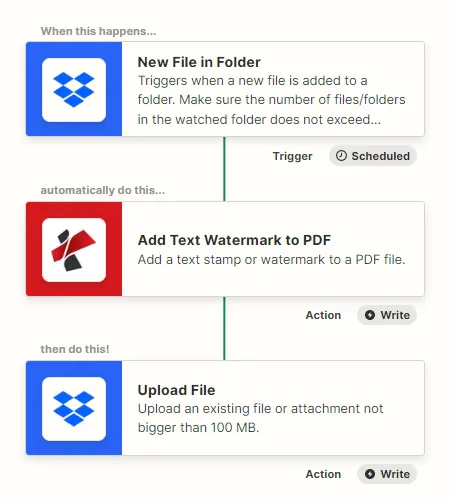
Adding watermarks or automating them is not an easy job. But with PDF4me integration for Zapier, this process can be automated in simple steps. Let us look at an example where we want to add text stamps to PDF documents in Dropbox.
Add a Dropbox trigger
Add and configure the Dropbox trigger to watch for files and start a Zap as soon as source files reach the mapped source folder.
Add PDF4me Add Text Watermark action
Add and configure the Add text Watermark action from PDF4me. Configure the watermark, text, size, color, position, and other fields as per requirement. Read the PDF4me actions documentation to know how to configure the parameters properly.
Add Upload file action
Add the Dropbox upload file action to save the processed files back to the cloud storage. Map the folder to which the output files need to be saved.